
To extract text from an image, use OCR to turn the visible letters into an editable draft. Start with the sharpest original, crop to the text you need, choose the correct language, and try grayscale or high contrast when the first pass is poor. Then verify names, numbers, punctuation, and links against the image before copying the result.
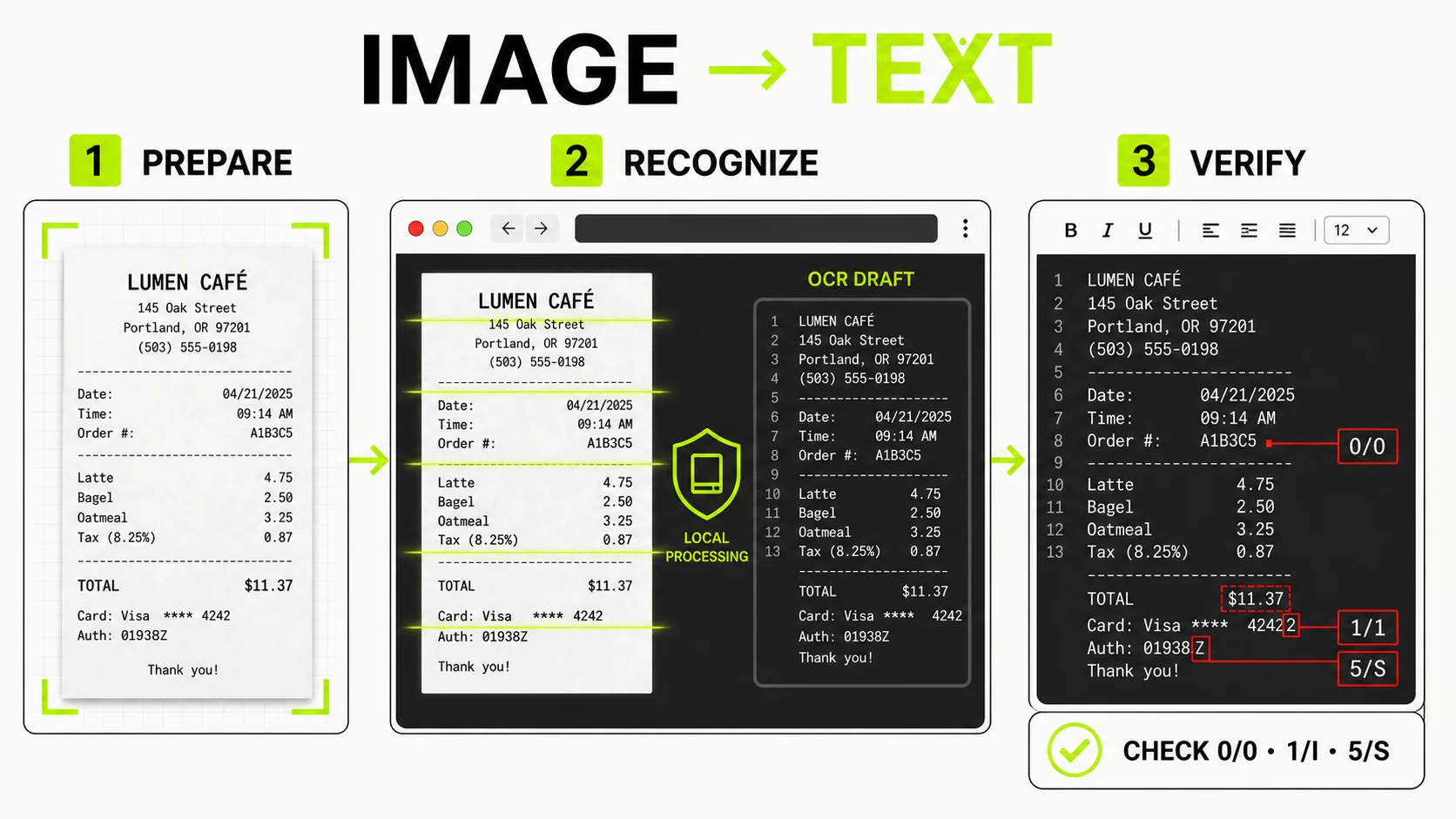
What is OCR, and what does it actually return?
Optical character recognition, or OCR, analyzes shapes in an image and predicts which characters they represent. It can turn a screenshot, photographed sign, receipt, scanned page, or product label into text you can search, edit, and paste elsewhere.
The important word is predicts. OCR does not uncover a hidden text layer
inside an ordinary image. It builds a new transcription from pixels. A result
that looks convincing can still contain a wrong digit, a missing decimal point,
or an O where the original shows 0.
Treat the output like a fast first draft. That framing makes OCR extremely useful without asking it to provide certainty it does not have.
How do you copy text from a screenshot?
- Use the original screenshot when possible. A screenshot sent through chat may have been scaled or recompressed.
- Crop away toolbars, illustrations, sidebars, and other text you do not need. A smaller, focused region gives the recognizer a clearer job.
- Select the language used in the image. The wrong model can distort accented characters and common word patterns.
- Run OCR once with the original image.
- If the result is weak, try grayscale for colored backgrounds or high contrast for faint, simple documents.
- Compare the draft with the source before reusing it.
The OCR Text Extractor performs those steps in the browser. It currently supports English, Spanish, French, and German, with original, grayscale, and high-contrast preparation. You can edit the result, copy it, or download a plain-text file.
OCR Text ExtractorTurn a screenshot, scan, or photo into editable text locally, then review the result before using it.
Extract text from an image →Which images produce the best OCR results?
OCR works best when each character occupies enough clear pixels and remains visually distinct from its background. Different sources fail for different reasons.
| Source | Usually works well | Common failure | Best first fix |
|---|---|---|---|
| Native screenshot | Large interface text, error messages, simple tables | Tiny labels, icons mixed with text | Crop tightly and keep the original resolution |
| Scanned page | Straight, evenly lit printed text | Faint paper, shadows, skew | Try grayscale, then straighten or rescan |
| Phone photo | Signs, labels, short printed passages | Perspective, glare, motion blur | Retake level, fill the frame, avoid reflections |
| Receipt | Clear item names and totals | Faded thermal print, narrow columns | Crop the receipt and try high contrast |
| Decorative graphic | Large headings | Curved, outlined, or stylized letters | Isolate one text block at a time |
| Handwriting | Occasionally neat block letters | Joined strokes and personal letterforms | Transcribe manually or use a handwriting-specific system |
Resolution matters more than the displayed size of the preview. A large image shown inside a small browser panel can still contain enough source pixels for recognition. A tiny image stretched to fill the screen does not gain detail. The official Tesseract.js documentation also notes that it is a WebAssembly OCR engine for browser and Node.js use and does not directly support PDF files.
How can you improve OCR accuracy?
Use this three-pass rescue sequence instead of changing every setting at once.
Pass 1: original pixels
Start with the untouched image. Modern screenshots often contain antialiased text that the recognizer handles better than a forced black-and-white version. Do not assume preprocessing is automatically an improvement.
Pass 2: grayscale
Grayscale removes color distractions while preserving shades and edge detail. It can help when text sits on a colored panel, a photographed page has a color cast, or compression created colored fringes around letters.
Pass 3: high contrast
High contrast turns pixels into near black or white. It can rescue dark text on a faded, plain page, but it can also erase thin strokes, punctuation, and light type. Compare its output with the original pass rather than trusting whichever result looks longer.
If all three are poor, the source is the problem. Return to it: crop more tightly with the Image Cropper, obtain the original file, retake the photo without glare, or scan the page again. Repeatedly running OCR on the same blurry pixels cannot reconstruct detail that is absent.
Which OCR mistakes should you check first?
Do not proofread every document with equal attention. Focus first on characters where one error changes the meaning or breaks the next action.
Ambiguous characters
0andO1, lowercasel, and uppercaseI5andS2andZ8andB- hyphen, minus sign, en dash, and em dash
- decimal point, comma, colon, and apostrophe
High-risk fields
- Names, addresses, dates, prices, totals, measurements and phone numbers.
- URLs, email addresses, serial numbers, order IDs and tracking codes.
- Code, command-line text, filenames and configuration values, where one symbol can change behavior.
- Medical, legal, or financial records, which require review by a qualified person rather than confidence in an automated transcription.
An OCR confidence score is a clue, not a guarantee. A page can receive a strong overall score while the one account number you need is wrong. Conversely, a low score may come from a decorative heading while the plain body text is usable. Verify the fields that matter against the pixels themselves.
Can OCR preserve tables and formatting?
Plain OCR is optimized for text, not document reconstruction. It may preserve line breaks, but columns can merge, table cells can appear in the wrong order, and indentation may disappear. Copying a receipt into a spreadsheet often requires placing each field into its correct column manually.
For a simple paragraph, clean the line breaks after recognition. For a table, compare row by row and rebuild the structure in a spreadsheet. For a complex form, searchable PDF, or multi-column publication, use a document-layout tool designed to preserve regions and reading order.
This distinction also prevents a common SEO-style promise from becoming misleading: “image to text” is not the same as “image to perfectly formatted document.” The first is practical in a browser; the second is a broader document-analysis problem.
How do you extract text from a PDF page?
GenClean’s OCR tool reads image files. For a scanned PDF or a page whose text cannot be selected:
- Open the PDF to Image converter.
- Export the needed page as PNG for sharp interface or document text.
- Crop to the relevant paragraph, table, or receipt section.
- Run that image through OCR.
- Compare the text with the original PDF page.
If the PDF already has selectable text, copy that text directly. Rendering it to pixels and recognizing it again only introduces opportunities for mistakes.
Is private browser OCR really local?
There are two separate transfers to understand. The OCR software and selected language model need to reach your browser, usually on the first run. The image does not need to leave the device for recognition.
GenClean loads Tesseract into a Web Worker and performs recognition there. The worker keeps the intensive task away from the main page, while the screenshot or document remains in the browser. This is useful for private material, but it does not remove the need to protect the resulting text after you copy or save it.
Before extracting text from a screenshot, also check whether it exposes details you should not preserve at all. The guide to redacting a screenshot safely explains how to remove credentials, names, messages, and account details before sharing the image. For sensitive files, our broader guide to online converter safety explains how to distinguish local processing from server uploads.
A reliable image-to-text checklist
- Use the sharpest original image.
- Crop to the smallest useful text region.
- Choose the correct language.
- Run the original first; preprocess only when needed.
- Treat the output as an editable draft.
- Verify names, numbers, punctuation, links, and totals.
- Rebuild tables rather than assuming spacing is preserved.
- Use selectable PDF text directly when it already exists.
- Keep sensitive images local and handle the extracted text carefully.
OCR is valuable because it replaces tedious retyping. It becomes dependable only when the workflow includes the one step no recognizer can remove: comparing important output with the source.