
Problems, solved plainly.
Why formats behave the way they do, what your photos quietly reveal, and how to fix it - each guide ends in a tool that does the job in your browser, without uploading anything.
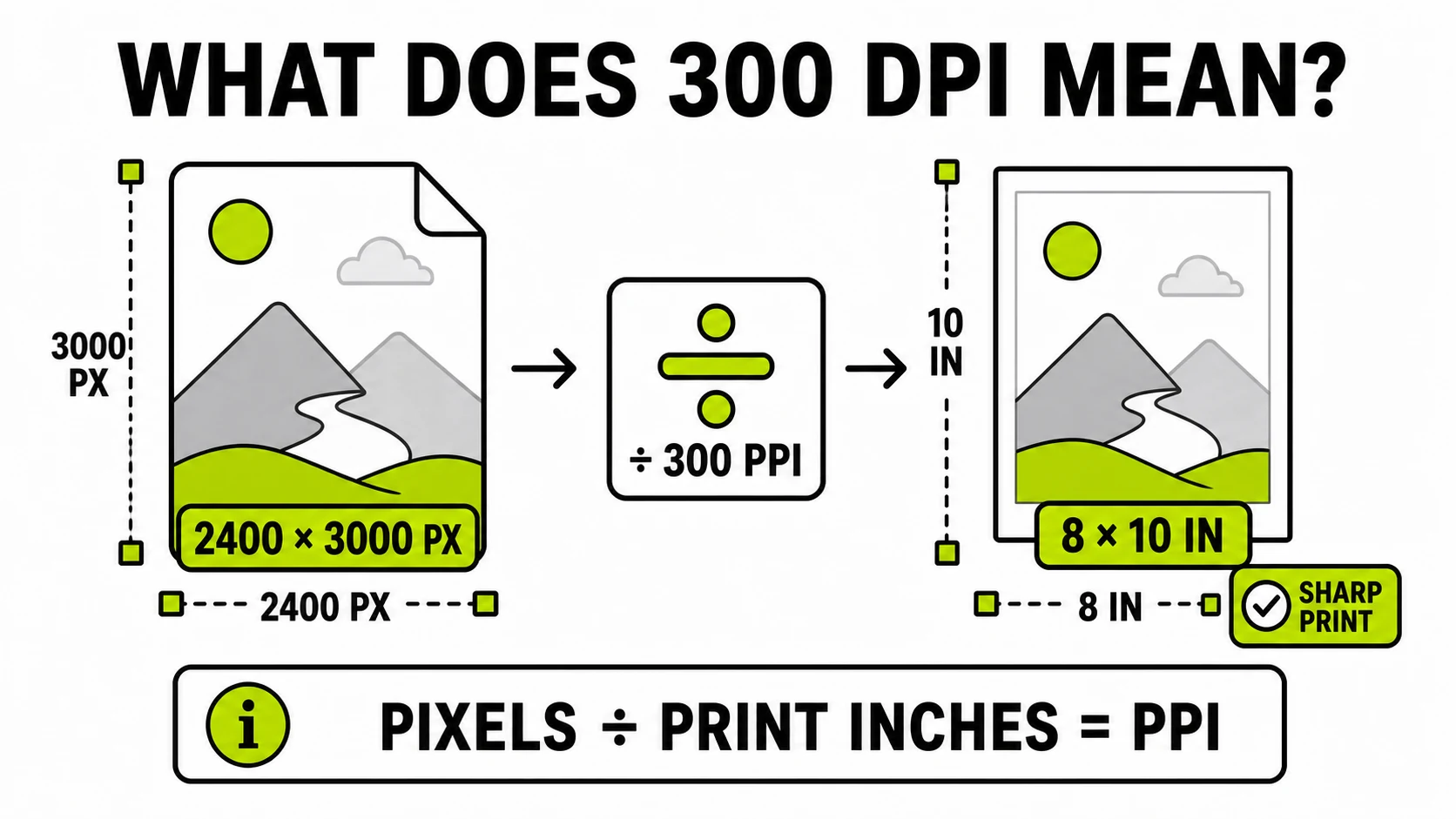
What Does 300 DPI Mean? Pixels and Print Size Explained
Learn what 300 DPI really means, calculate the pixels required for print, and see when changing DPI metadata helps without adding image detail.
Read the guide →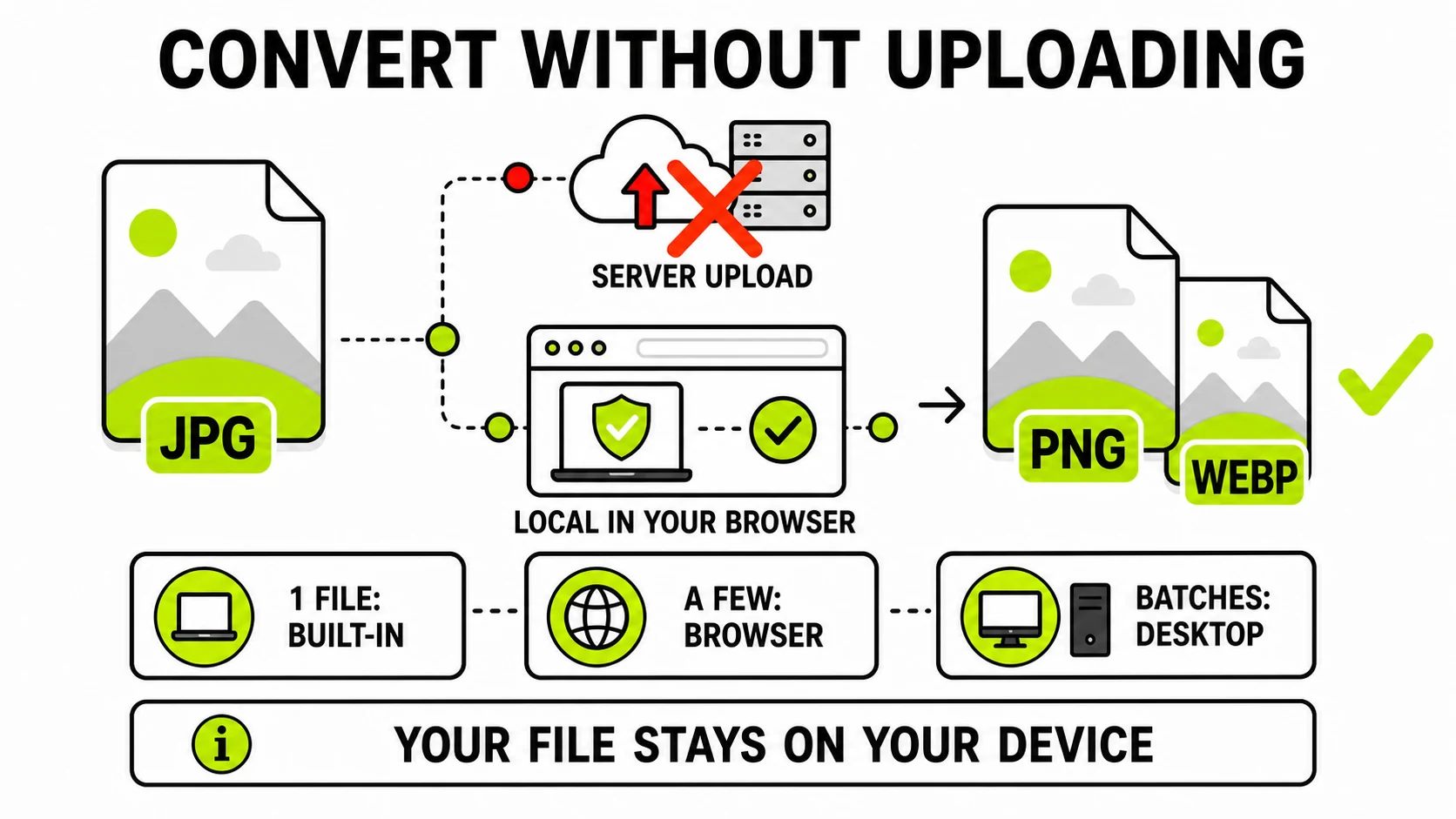
How to Convert Images Offline Without Uploading
Convert JPG, PNG, WebP, HEIC, or AVIF without uploading private files. Compare built-in, browser-local, and desktop methods and verify the claim.
Read the guide →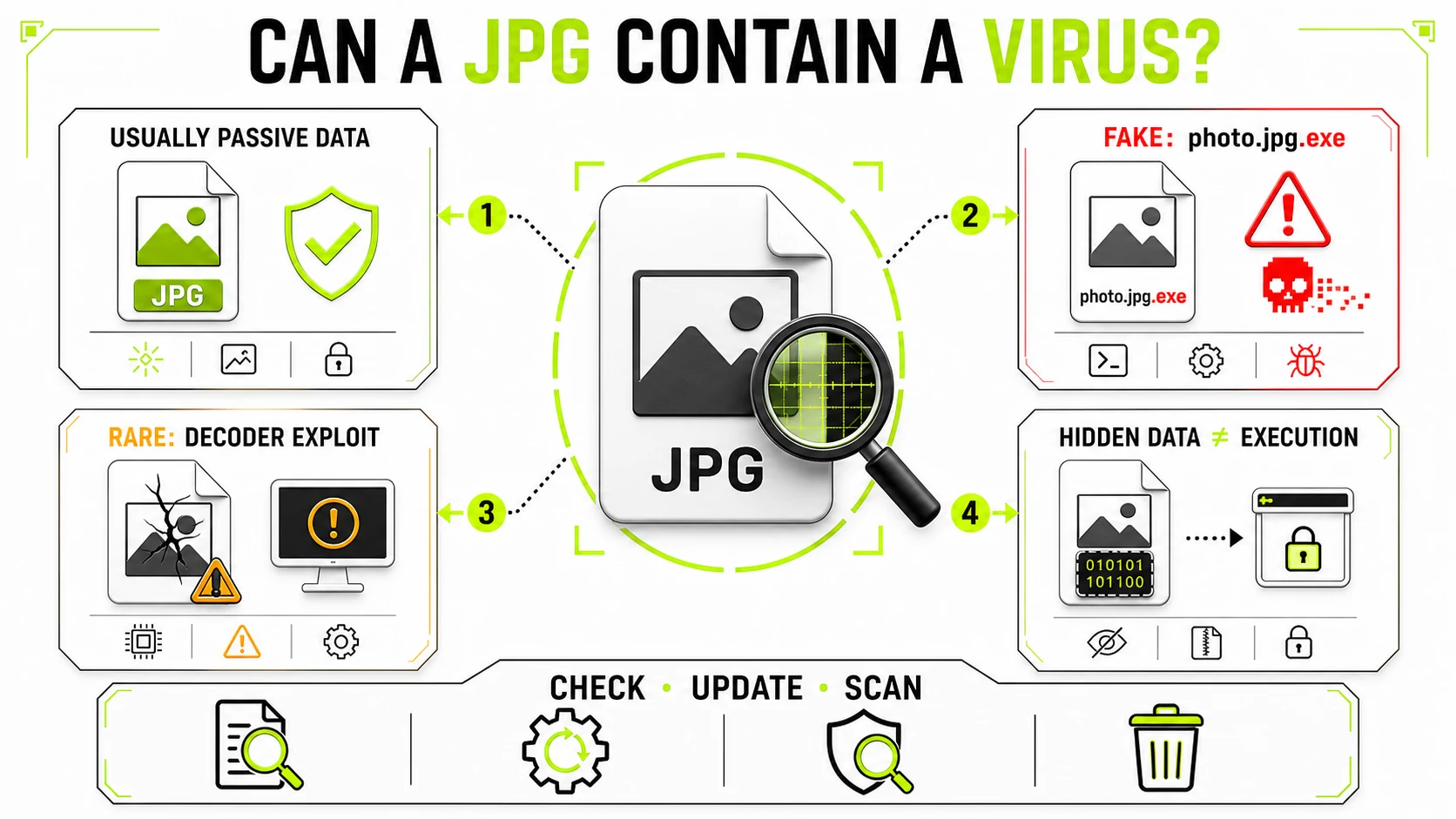
Can a JPG Contain a Virus? The Honest Answer
A JPG is usually passive image data, but fake extensions, decoder flaws, and hidden payloads create distinct risks. Learn what to check before opening one.
Read the guide →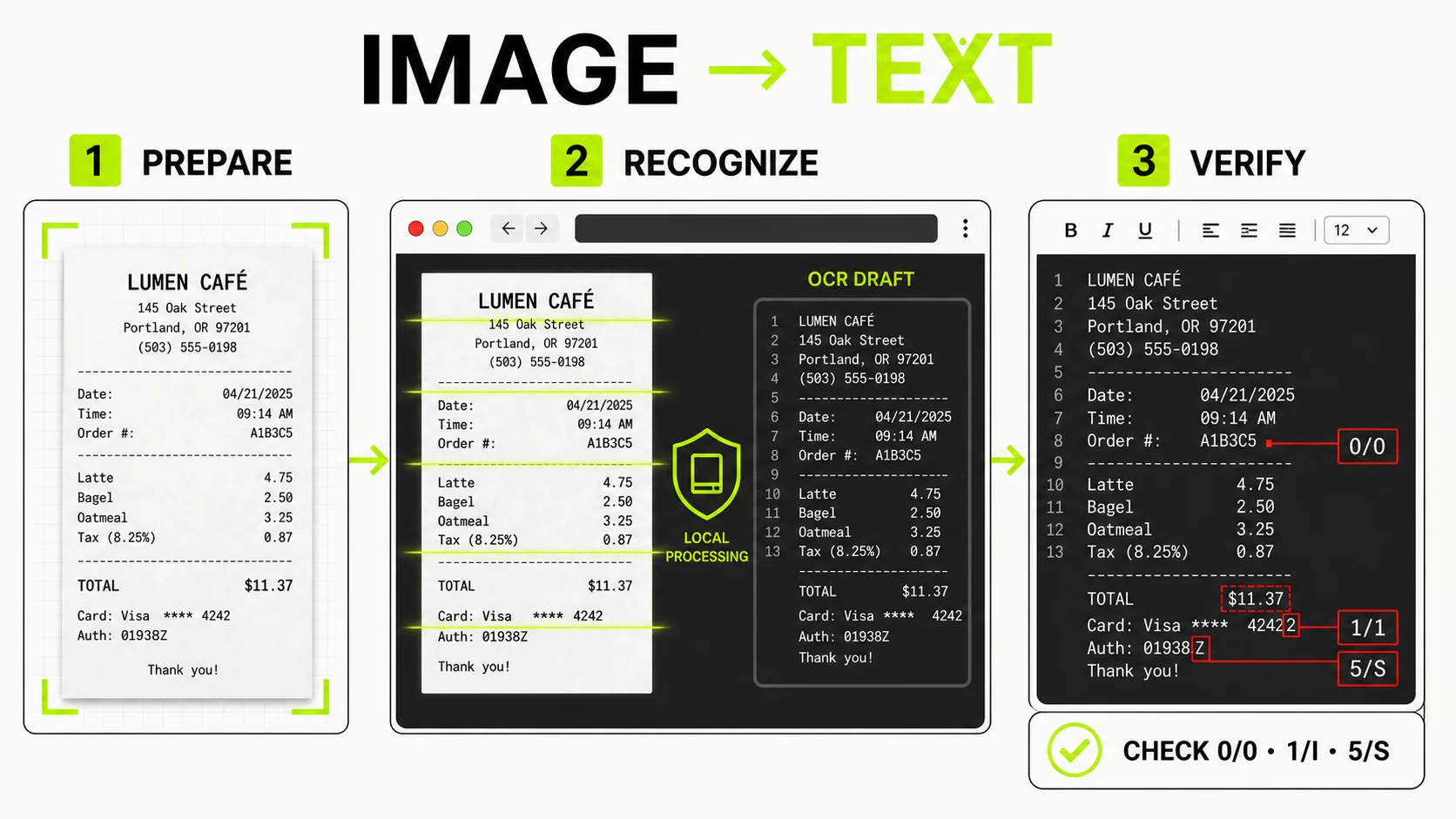
How to Extract Text From an Image or Screenshot
Extract editable text from screenshots, photos, and scans, improve OCR accuracy, and verify names, numbers, and links before using the result.
Read the guide →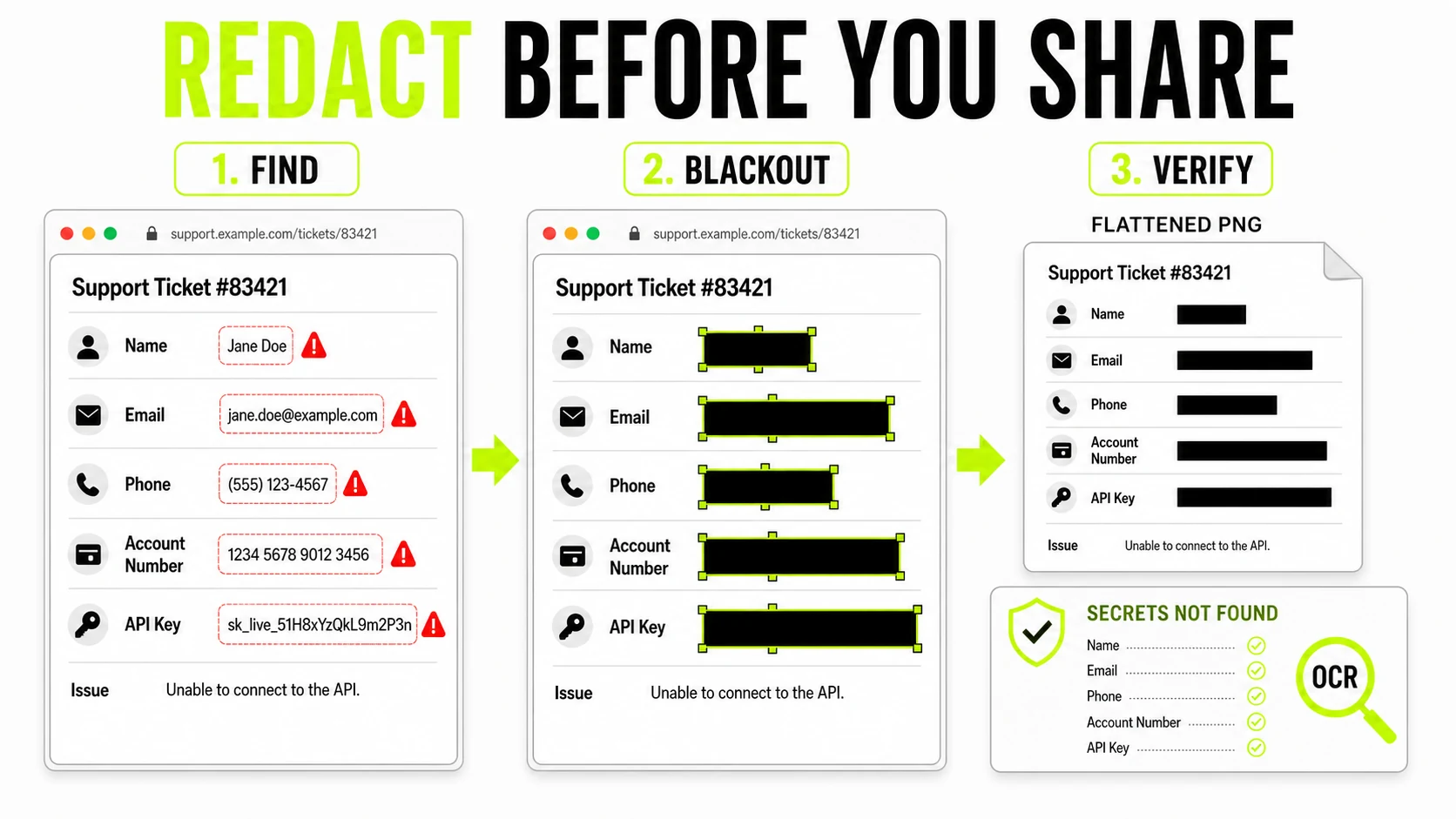
How to Redact a Screenshot Before Sharing It
Permanently redact names, messages, account details, and credentials from a screenshot, verify the result, and share only a flattened copy.
Read the guide →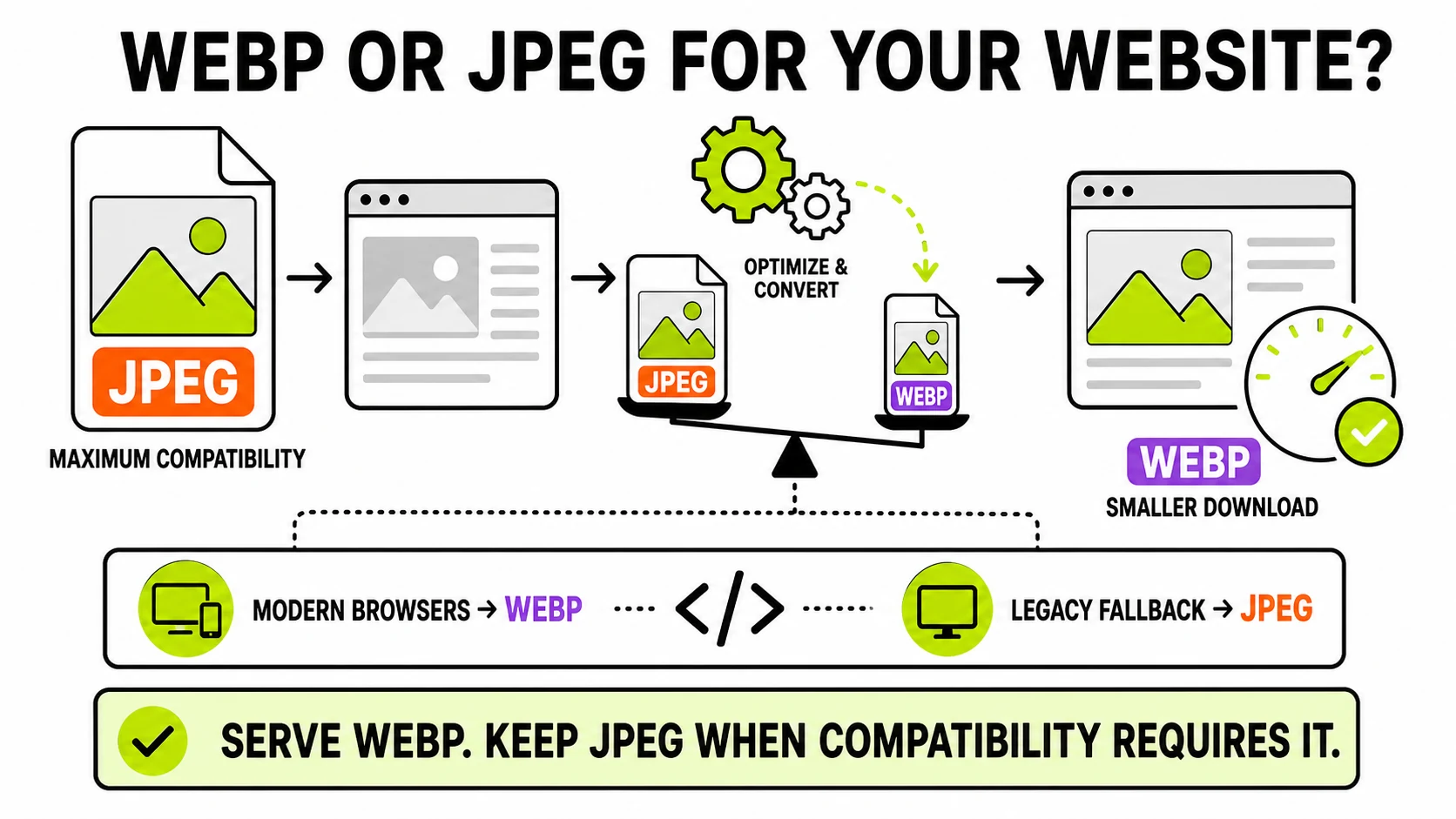
WebP vs JPEG for Websites: Which Should You Serve?
WebP usually gives websites smaller image downloads than JPEG at similar quality. Learn when to use it, when JPEG still matters, and how to serve both.
Read the guide →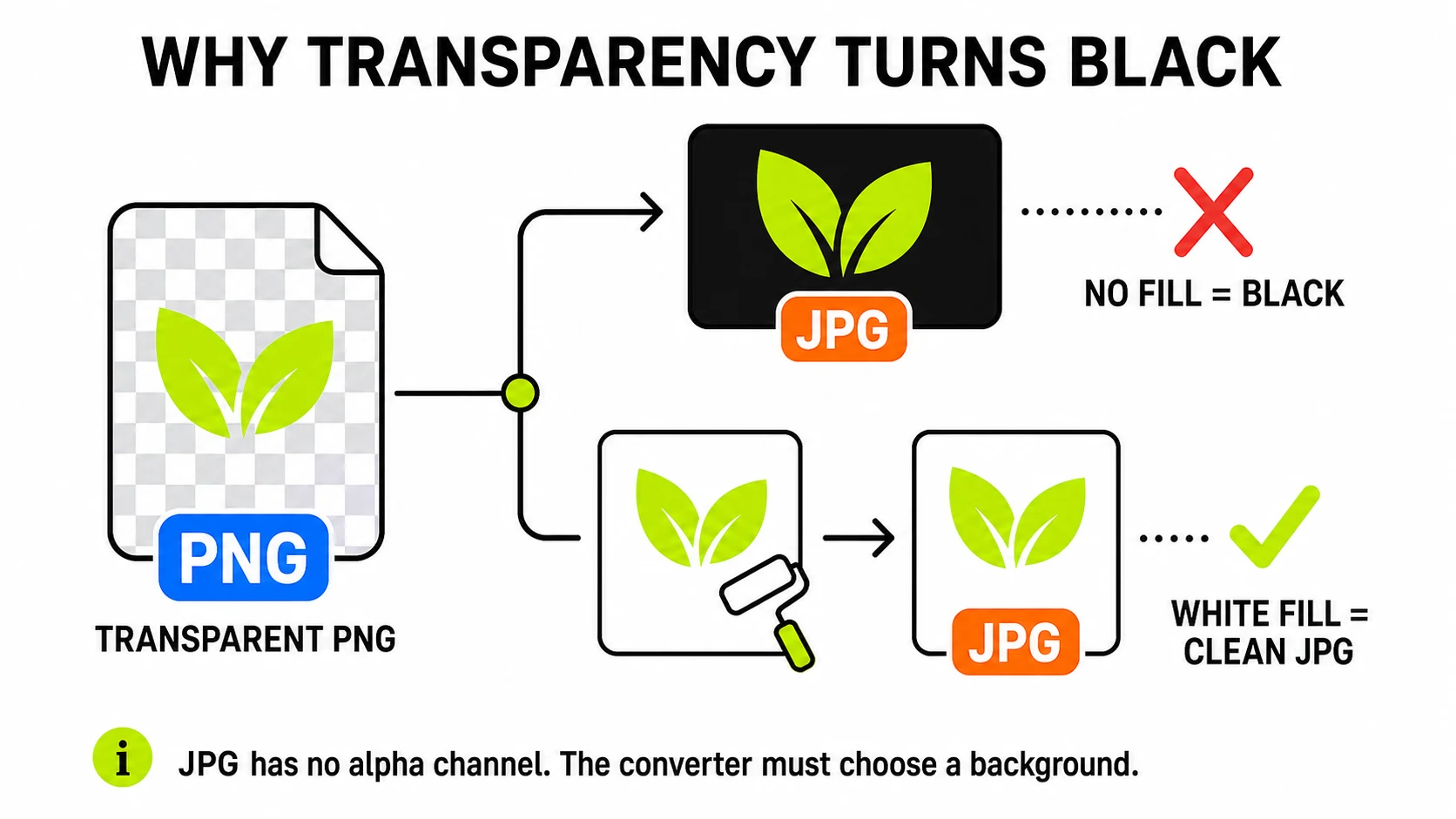
Why Does My Transparent PNG Turn Black When Converted to JPG?
JPG has no transparency channel at all - something has to fill the see-through areas. Black shows up when a converter never bothered to choose, not because JPG prefers it.
Read the guide →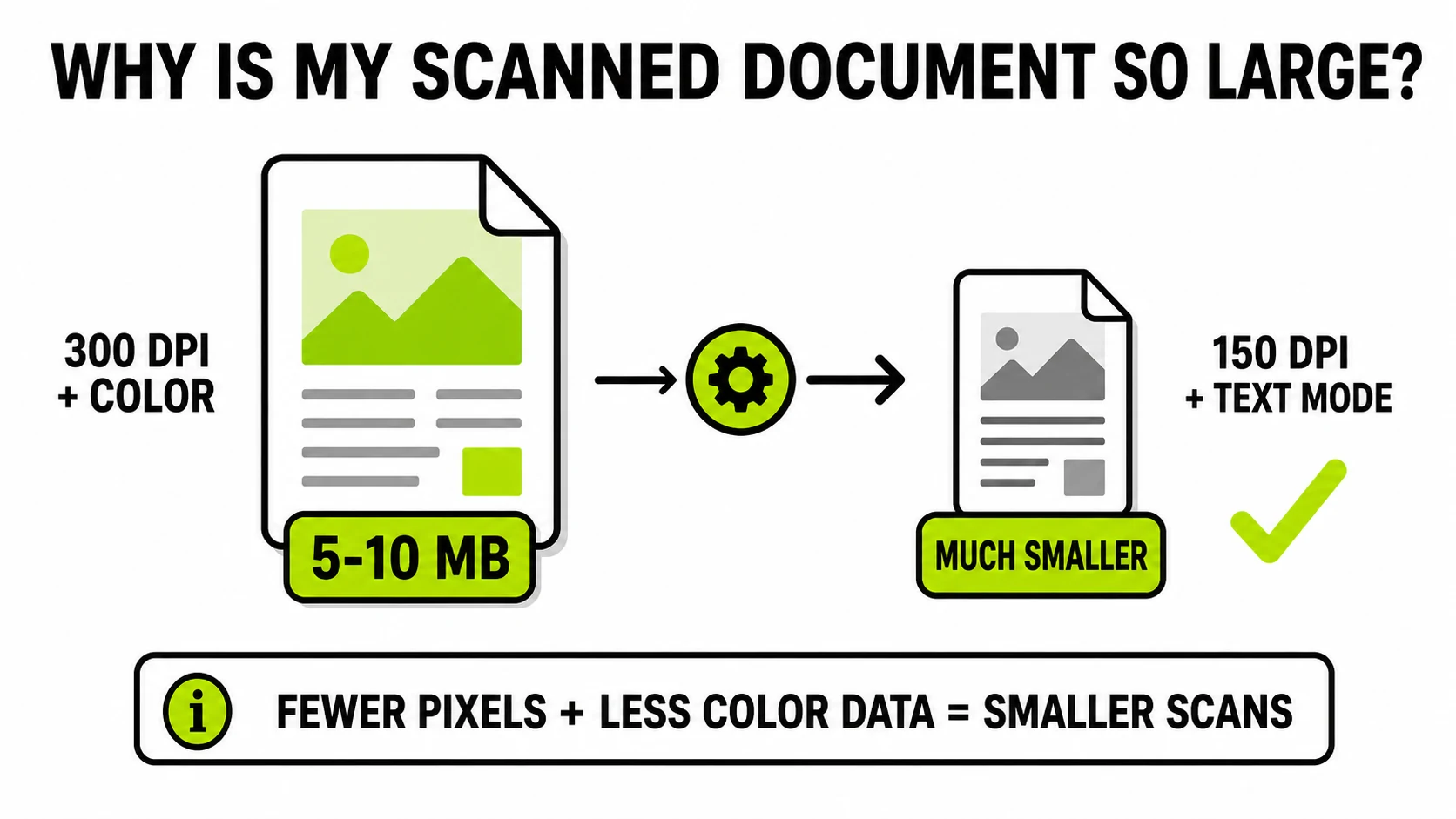
Why Is My Scanned Document So Large?
A one-page scan hitting 5-10MB isn't a broken scanner - it's the default resolution and color mode doing exactly what they're set to do. What actually shrinks it.
Read the guide →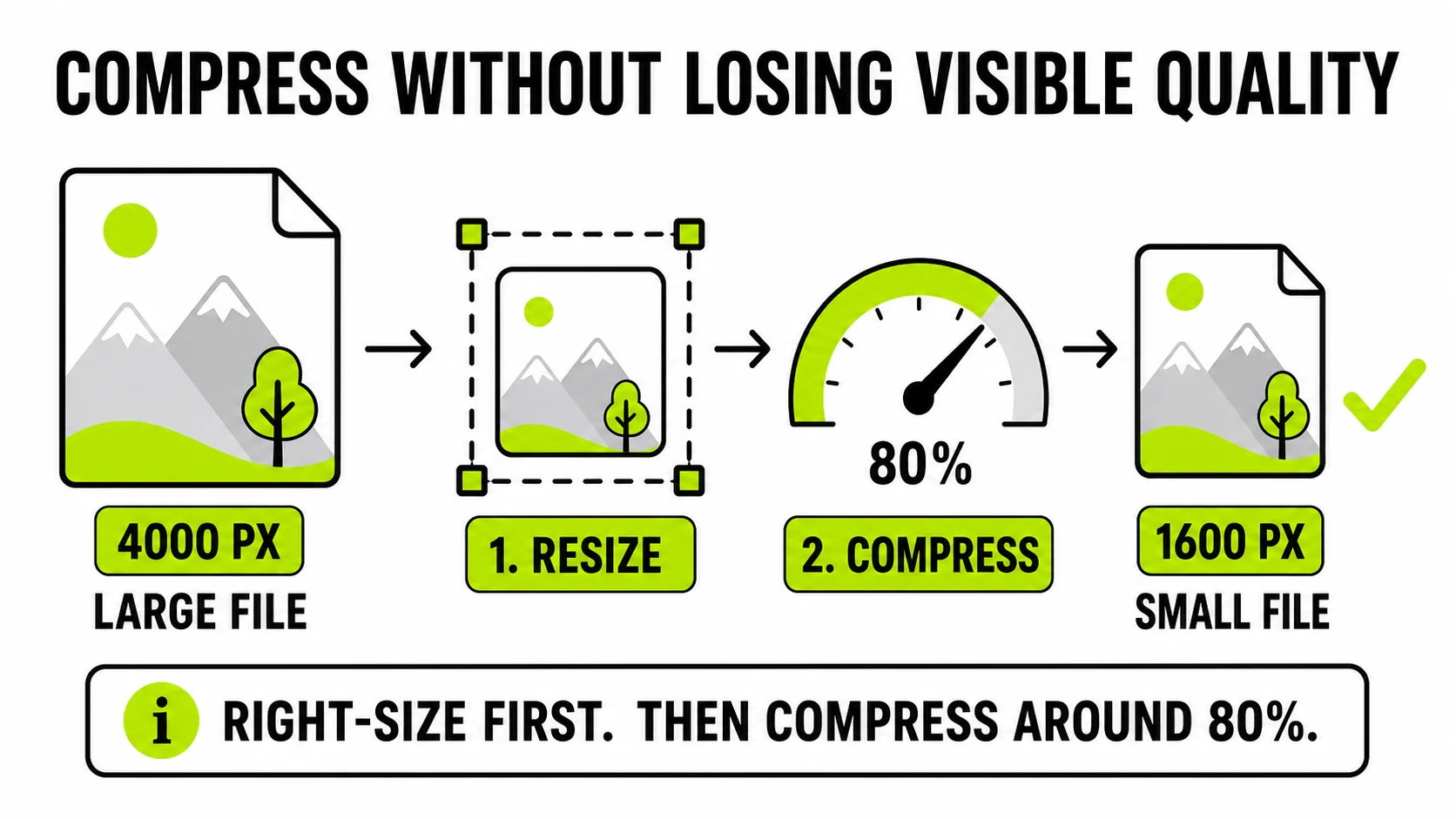
How to Compress a Photo Without Losing Quality
Compression only looks lossless when you pull the right two levers - quality setting and resolution - in the right order. Here's the honest, non-magic version.
Read the guide →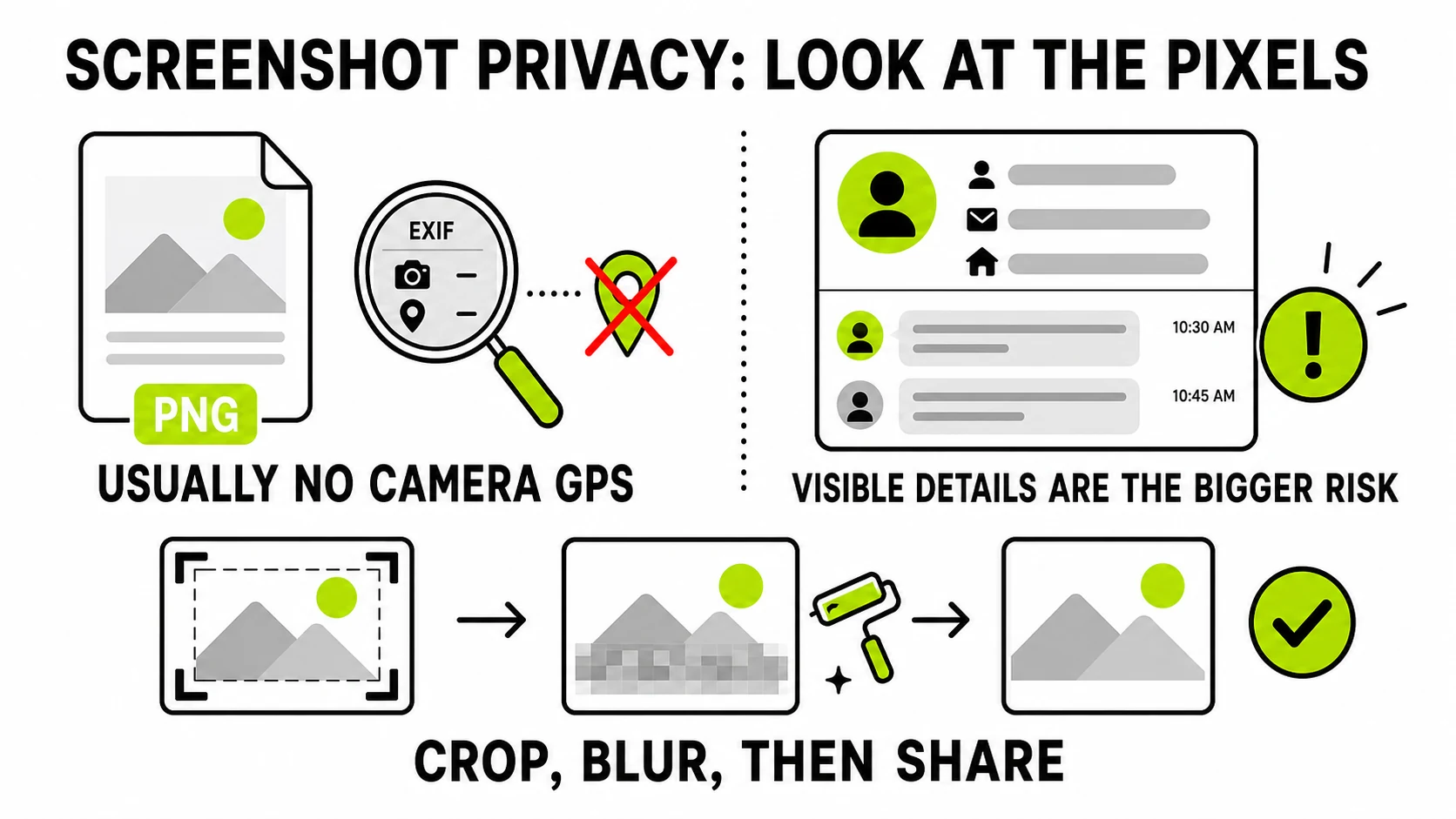
Do Screenshots Contain Metadata?
Usually not the GPS and camera EXIF a phone photo carries - screenshots are captured differently. What they can still carry, and the bigger risk that has nothing to do with metadata at all.
Read the guide →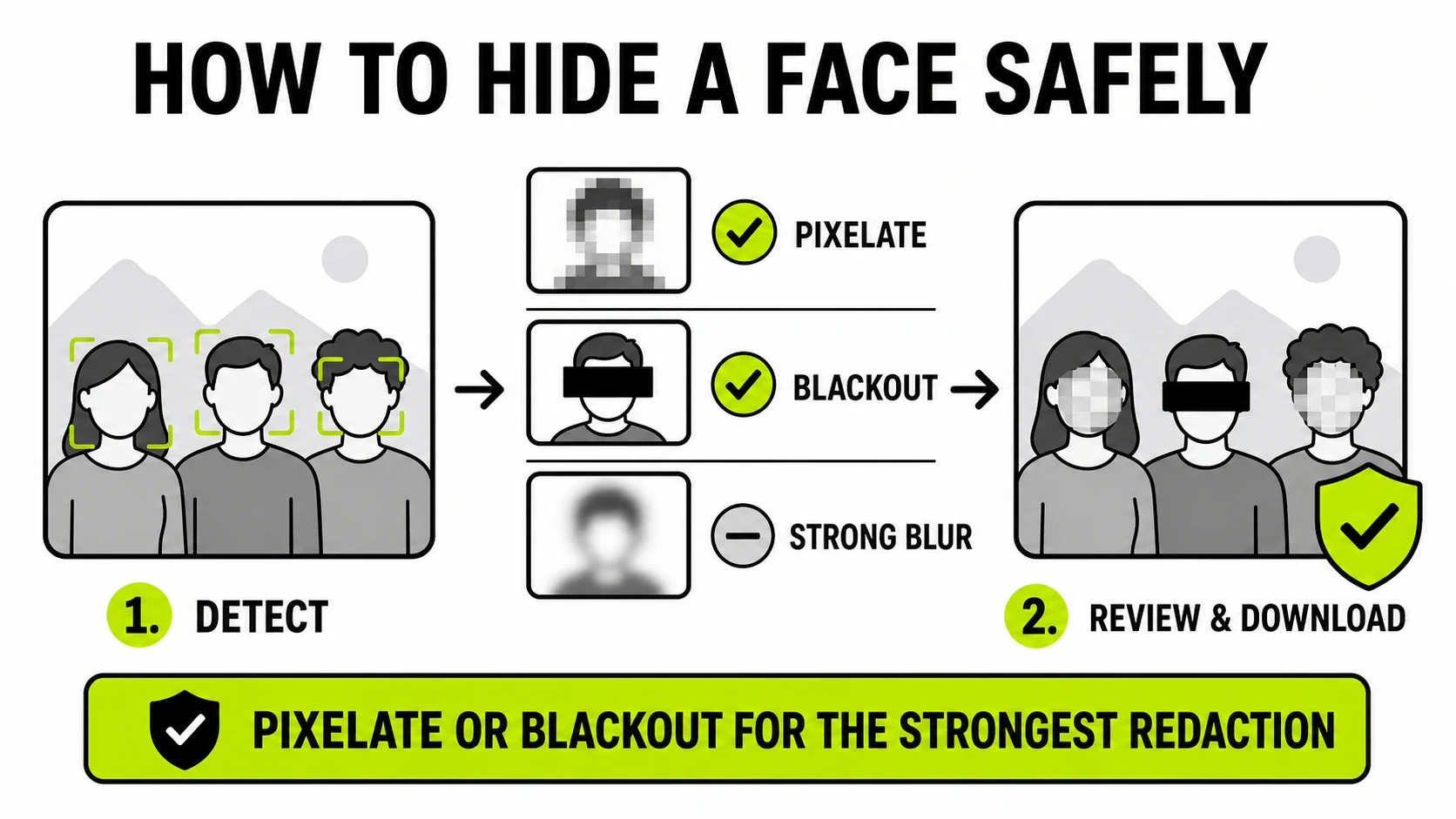
How to Blur a Face in a Photo (No App Install)
Drop the photo in a browser tab, let it find the face automatically, pick pixelate or blackout, download. No app, no account, no upload of the original.
Read the guide →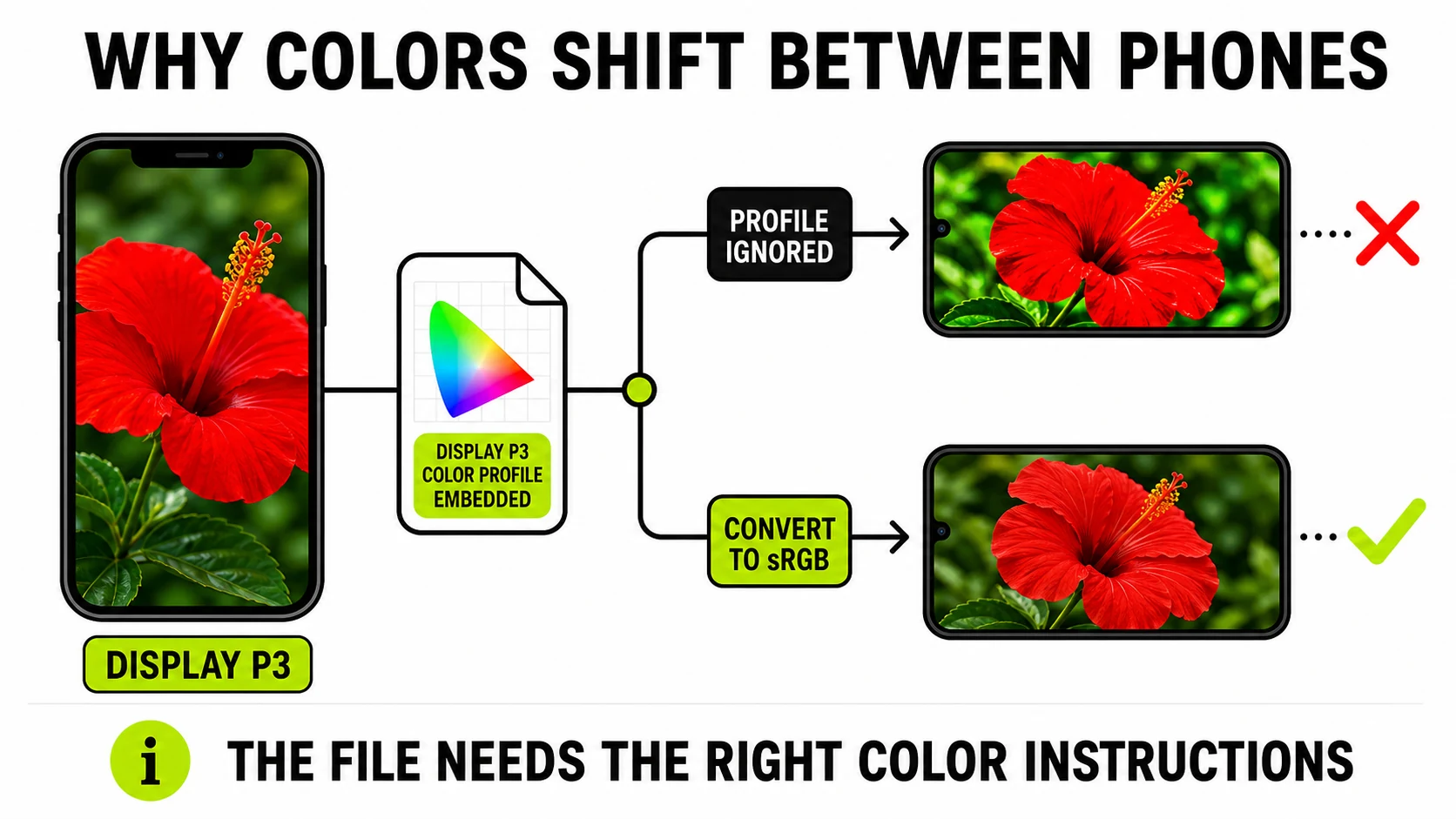
Why Do My iPhone Photos Look Different on Android?
It's rarely the phone's fault. Wide-gamut color profiles, a HEIC-to-JPG detour along the way, and screen calibration each shift color a little - here's which one is actually happening.
Read the guide →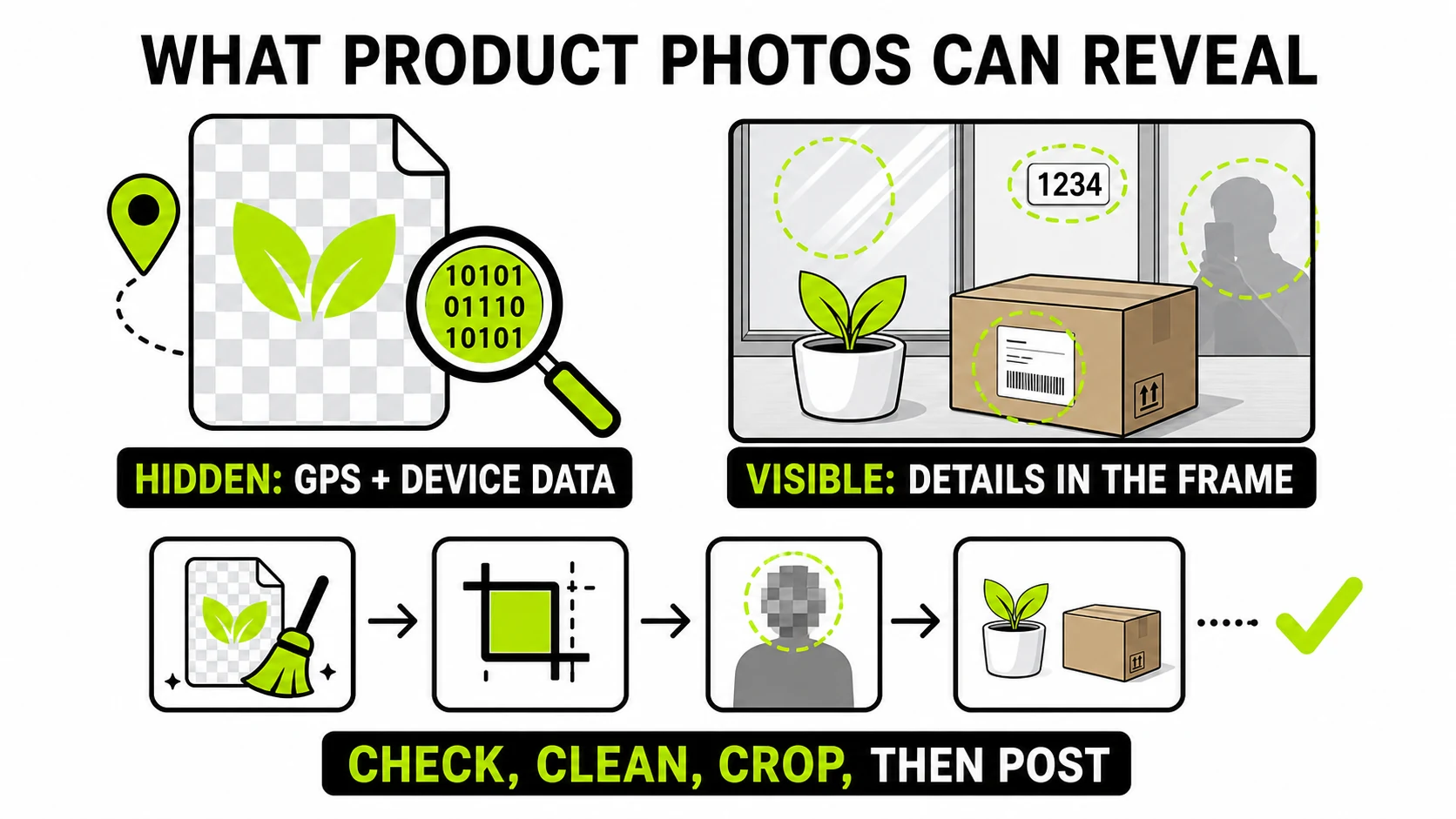
Selling Online Safely: What Your Product Photos Reveal
Marketplace photos leak two different ways - hidden GPS data in the file, and visible clues in the frame. A pre-listing check for both before you post.
Read the guide →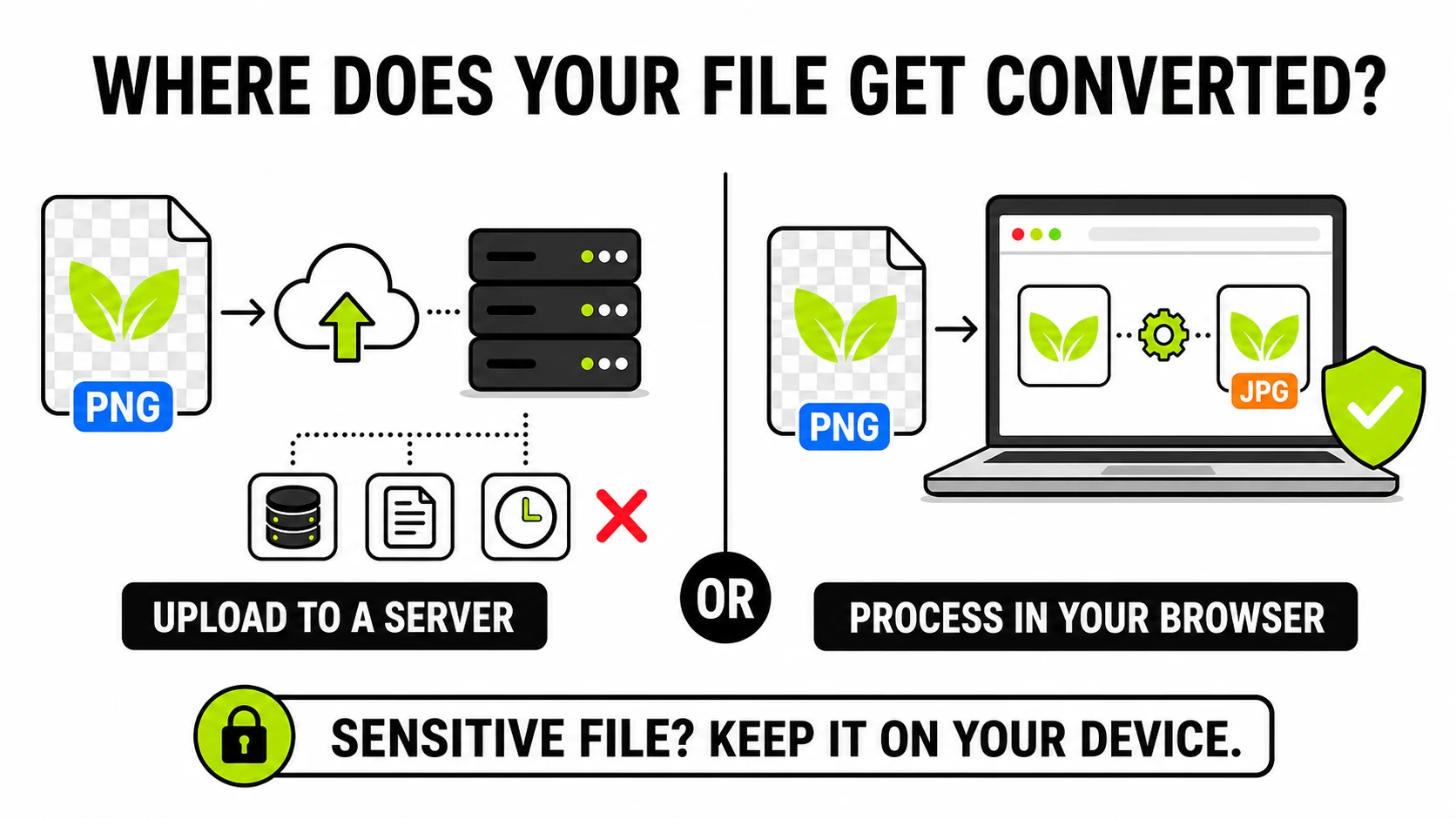
Are Online Image Converters Safe? What Happens to Uploads
Online converters are usually safe for casual images - but 'convert' means 'upload to a stranger's server' unless the tool runs in your browser. How to tell the difference, and when it matters.
Read the guide →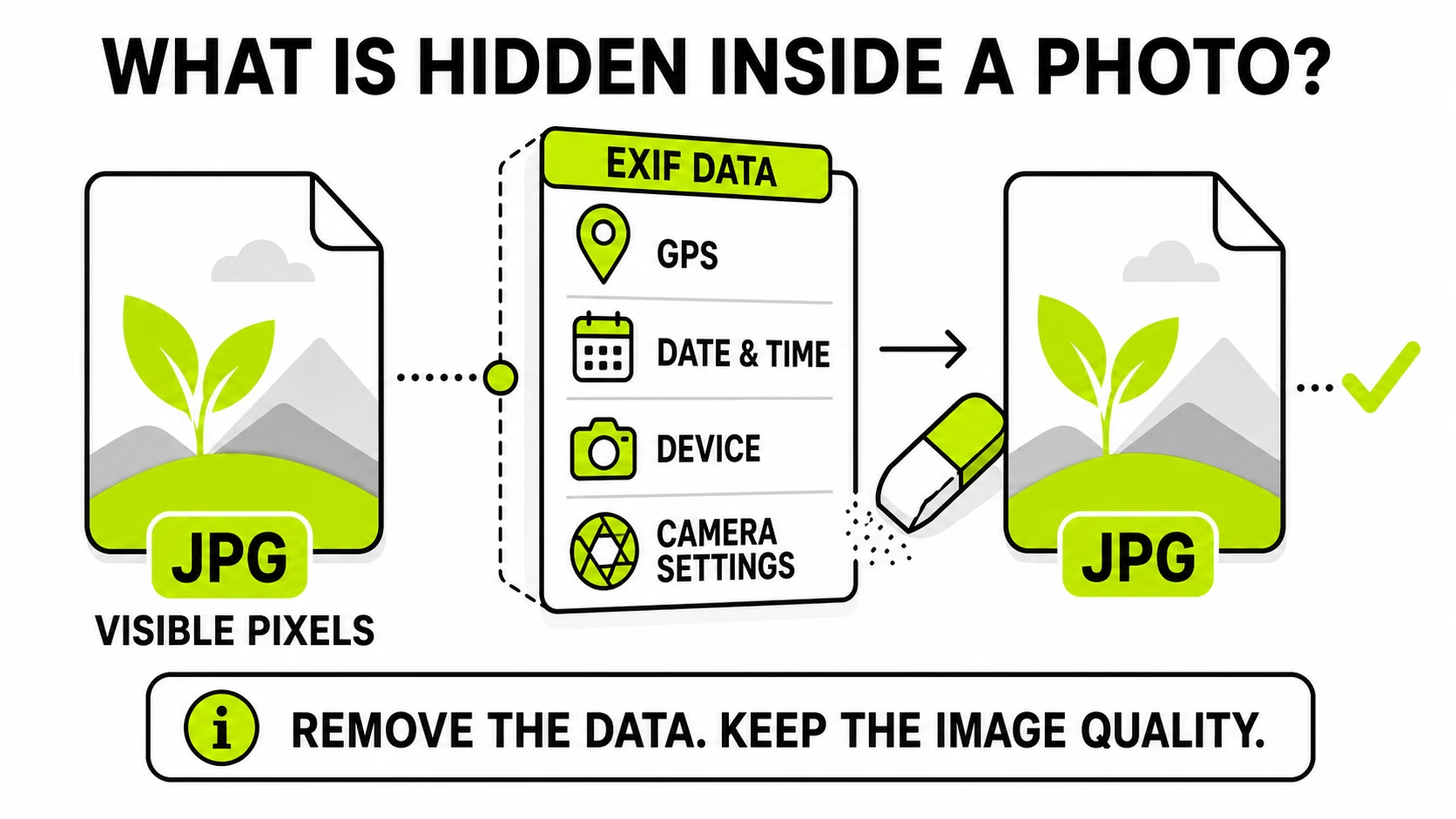
What Is EXIF Data? What Your Photos Reveal About You
EXIF data is the hidden information saved inside every photo - date, device, camera settings, often GPS location. What it contains, who can see it, and how to check and remove it.
Read the guide →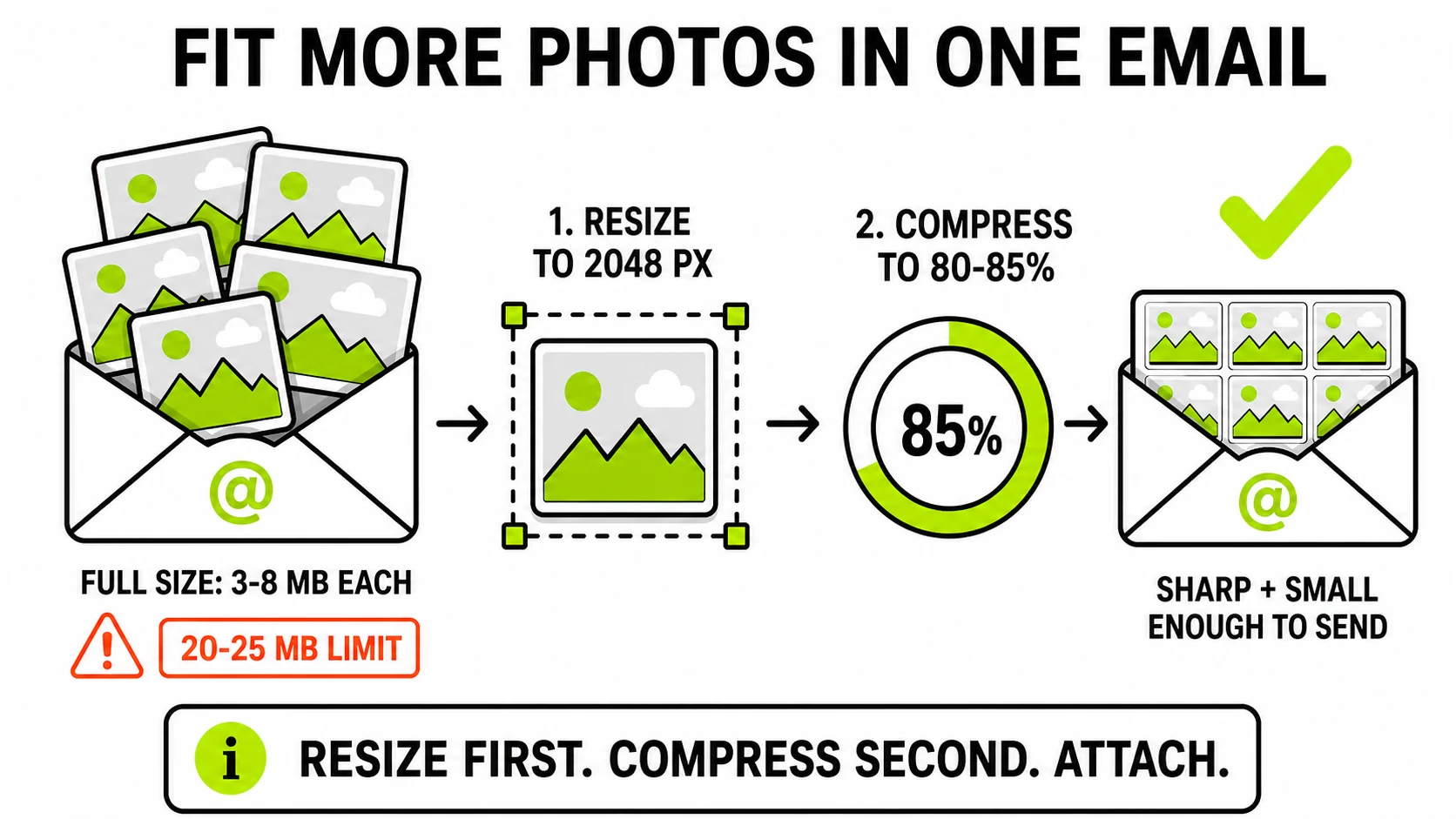
How to Compress Photos for Email (Without Losing Quality)
Email caps attachments around 20-25MB, and phone photos burn through that fast. The two levers that actually shrink photos - and the settings that keep them looking sharp.
Read the guide →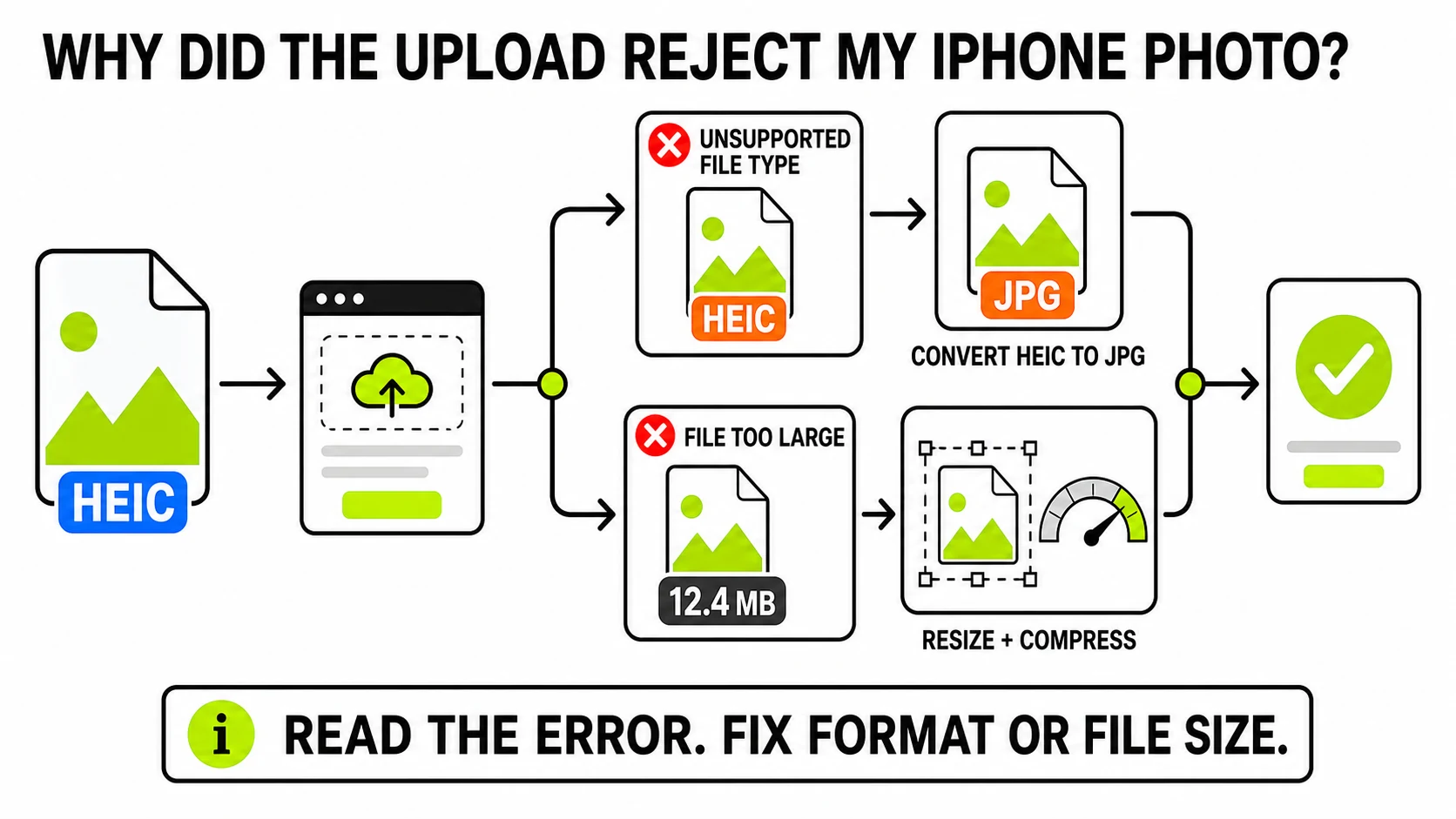
iPhone Photos Too Big to Upload? Here's How to Fix It
Upload forms reject iPhone photos for two different reasons - file size and HEIC format - and the fix depends on which one you hit. How to tell them apart and shrink the photo properly.
Read the guide →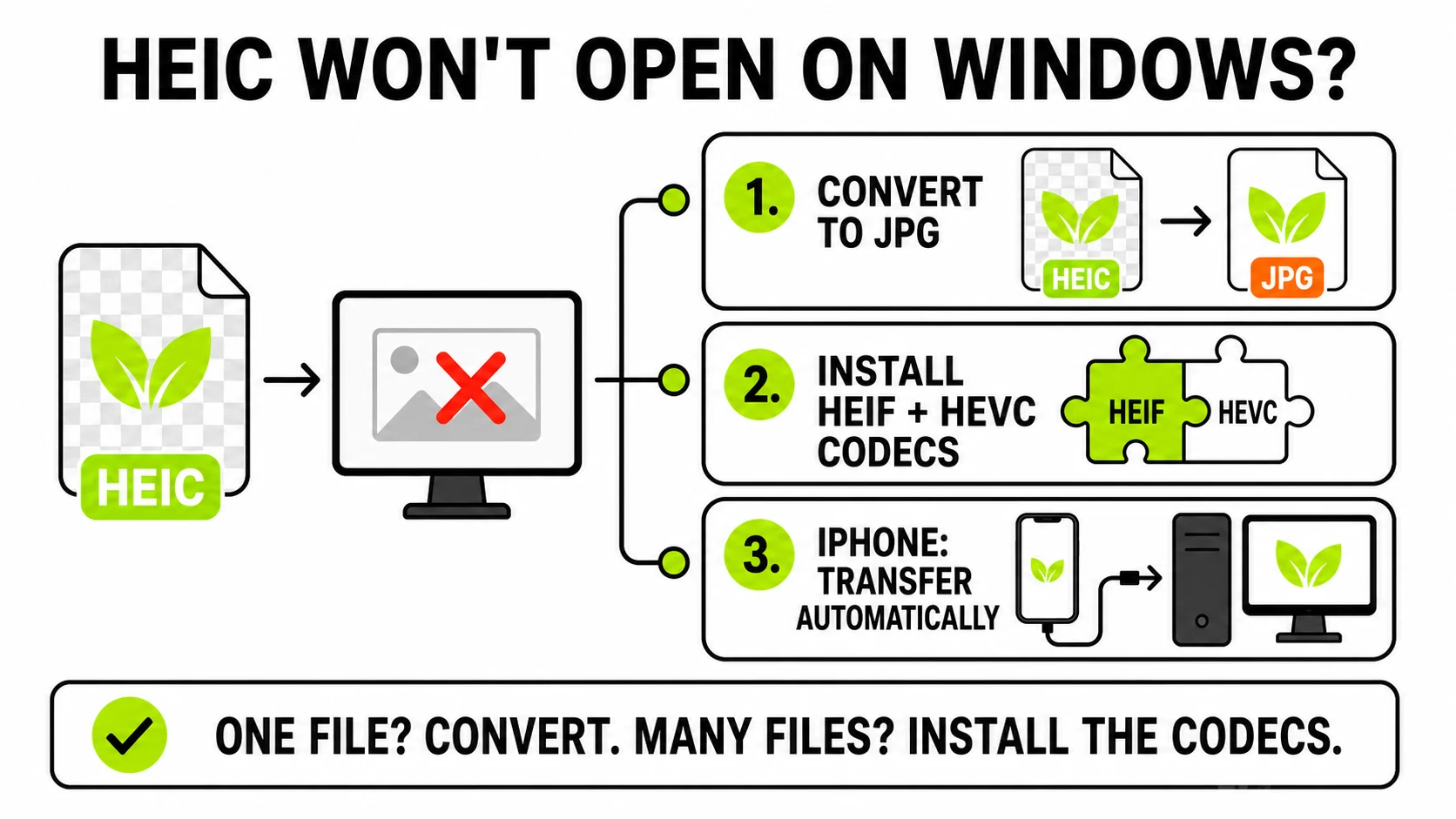
HEIC Won't Open on Windows? Every Fix, Explained
Why Windows can't open iPhone HEIC photos, the two-minute fix, and how to stop it happening again - including the free codec catch Microsoft doesn't advertise.
Read the guide →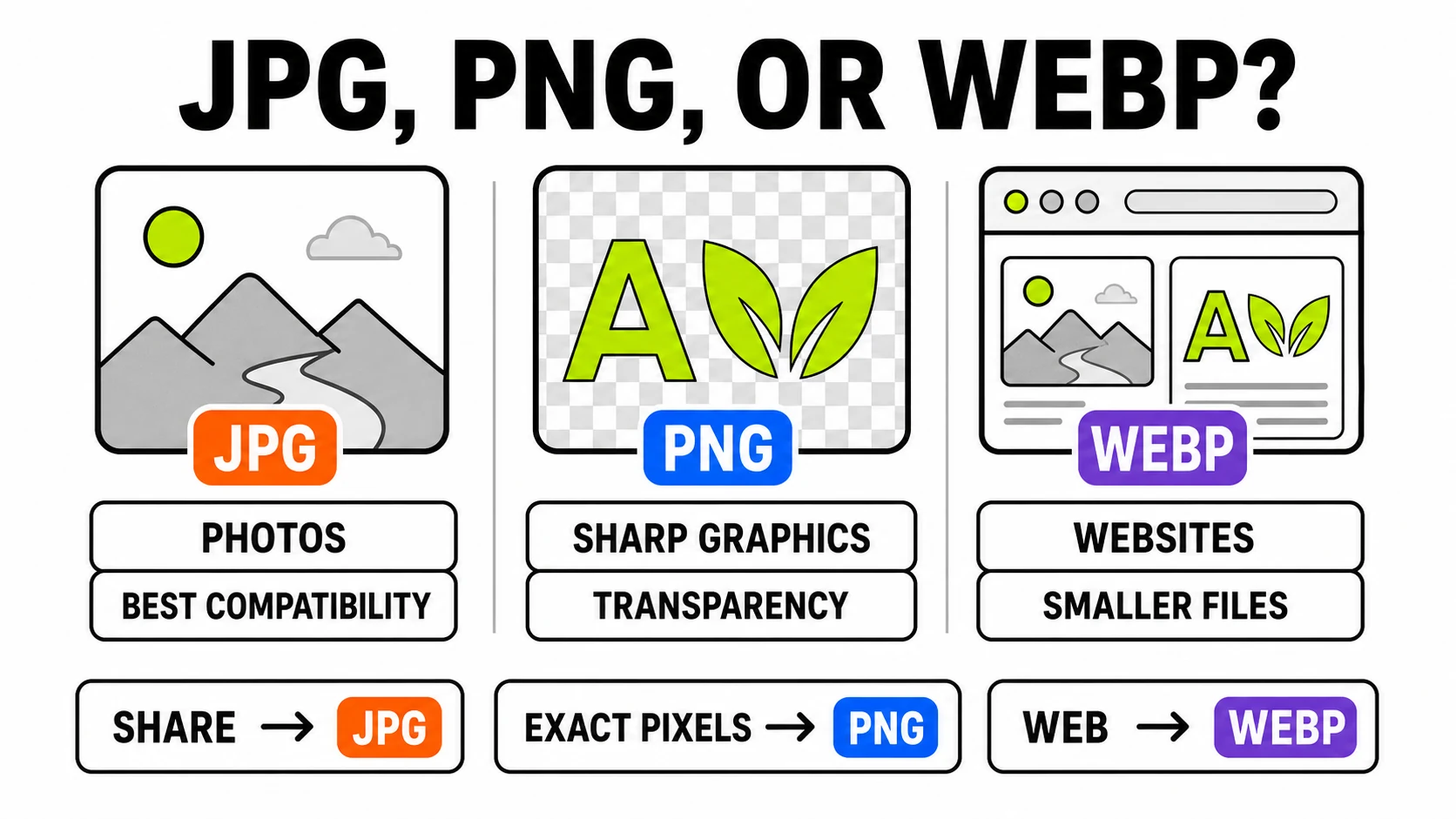
JPG vs PNG vs WebP: Which Format When (a Practical Guide)
The three formats make different promises: JPG trades detail for size, PNG keeps every pixel, WebP does both jobs smaller. A working decision guide with the edge cases.
Read the guide →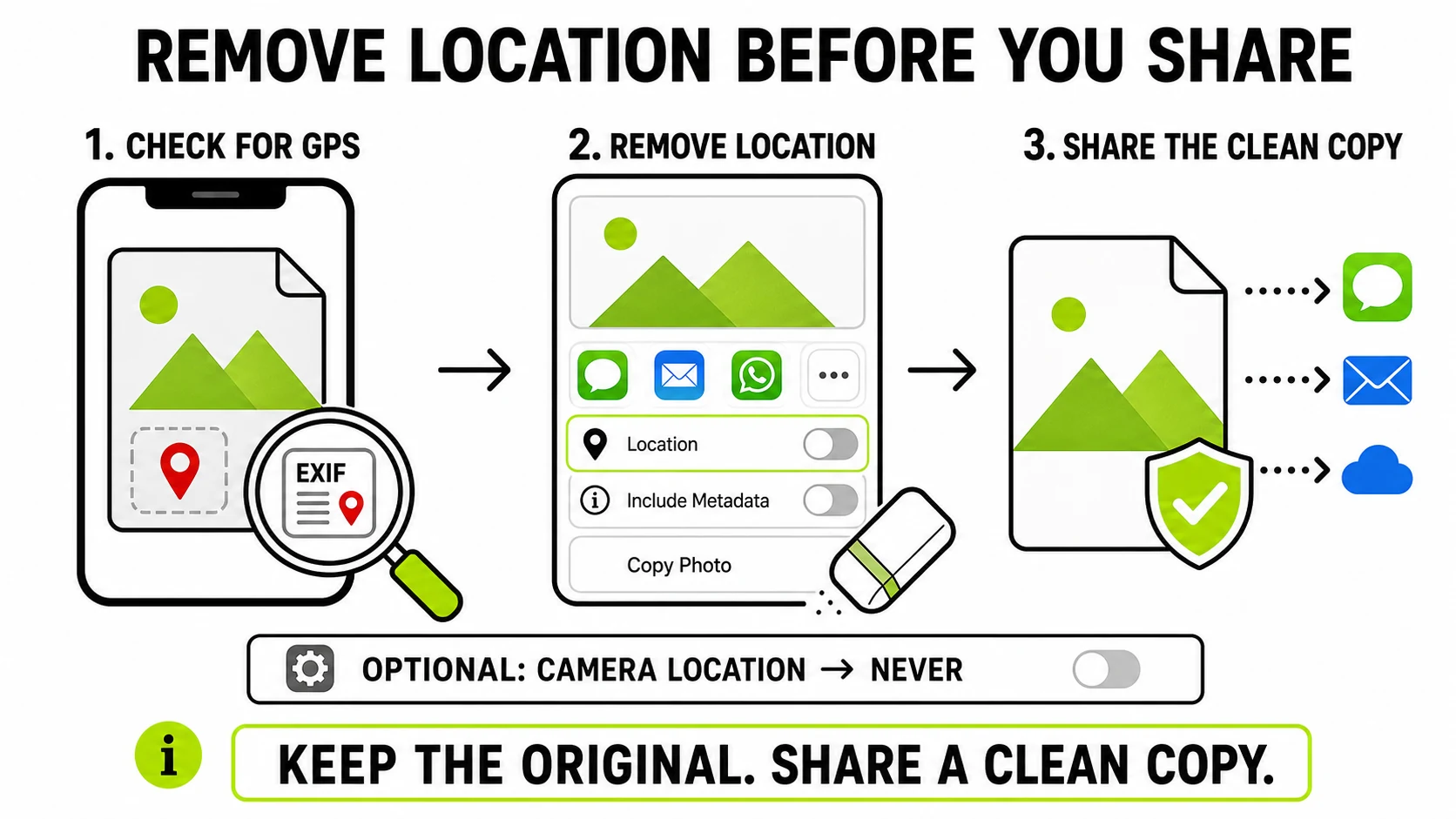
How to Remove Location Data From iPhone Photos
Your iPhone writes GPS coordinates into every photo. Here's how to check what a photo reveals, remove it before sharing, and stop recording it - without uploading the photo anywhere.
Read the guide →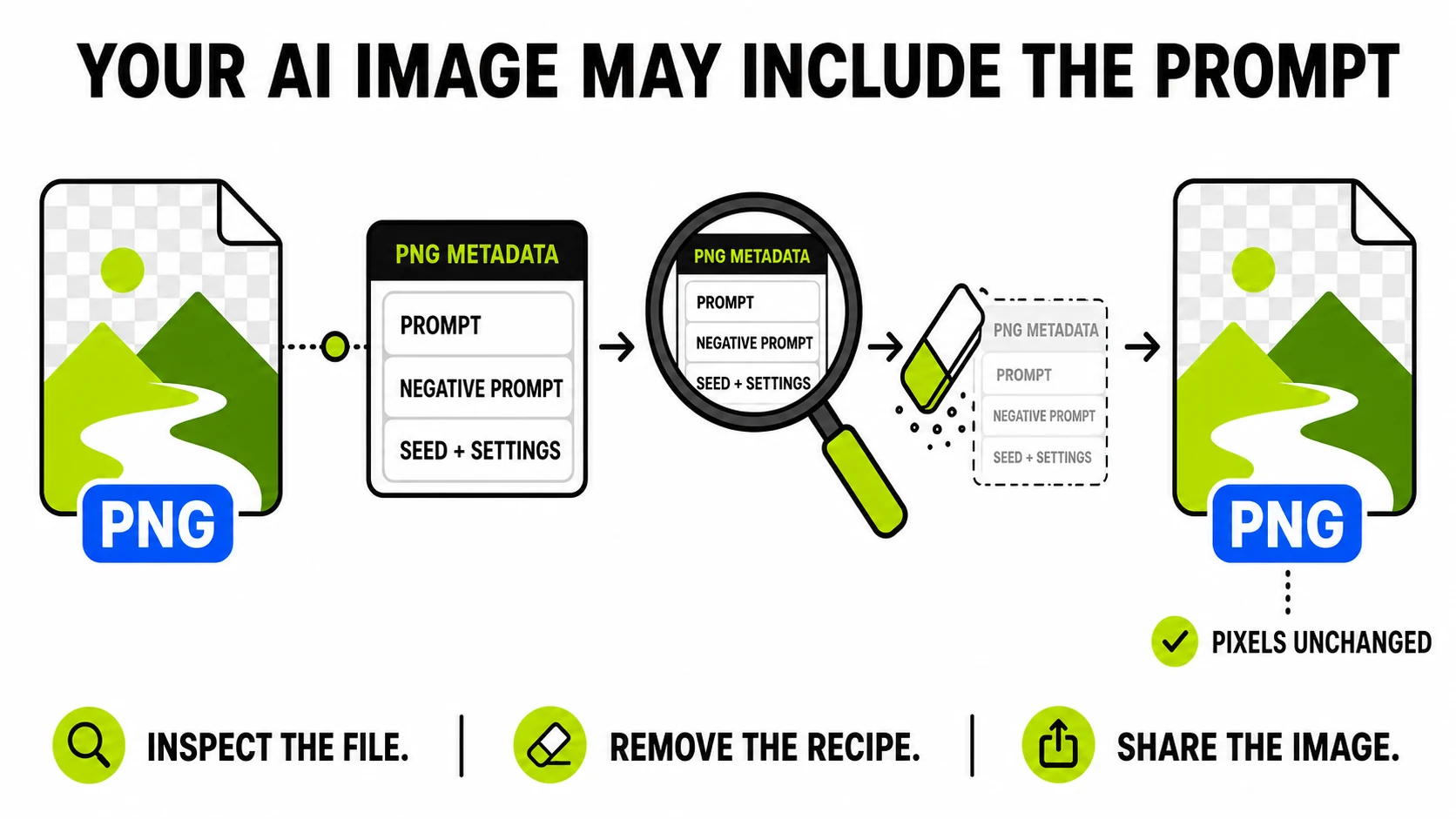
AI Images Can Carry Your Prompt: What's Inside a Generated PNG
Many AI image tools write your full prompt, seed, and settings into the file itself. How to see what a generated image is carrying - and share the image without shipping your prompt.
Read the guide →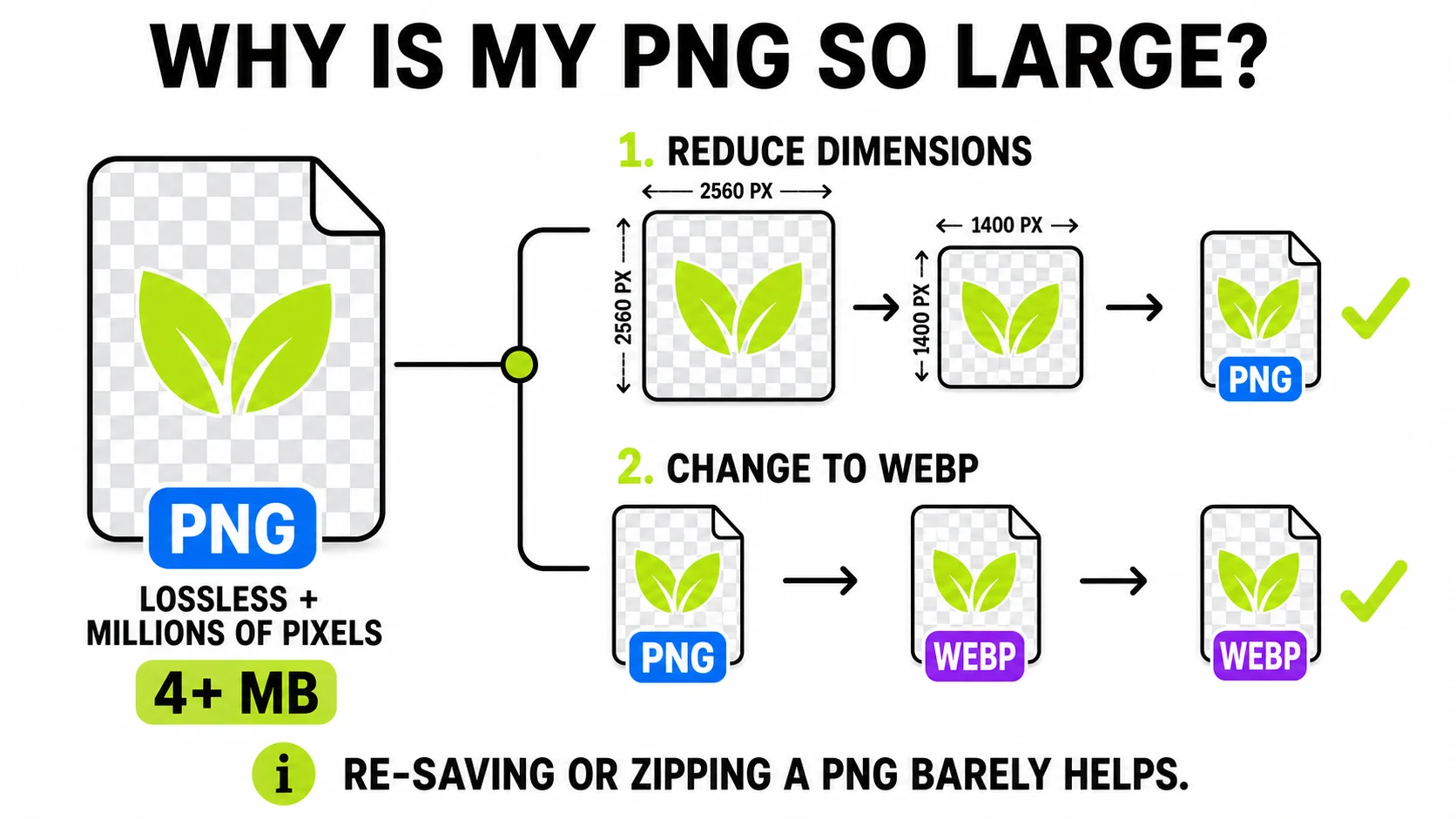
Why Is My PNG So Large? (And What Actually Shrinks It)
A 4MB screenshot isn't broken - it's how PNG works. What makes PNG files huge, which fixes actually work, and the 'compression' advice that does nothing.
Read the guide →