
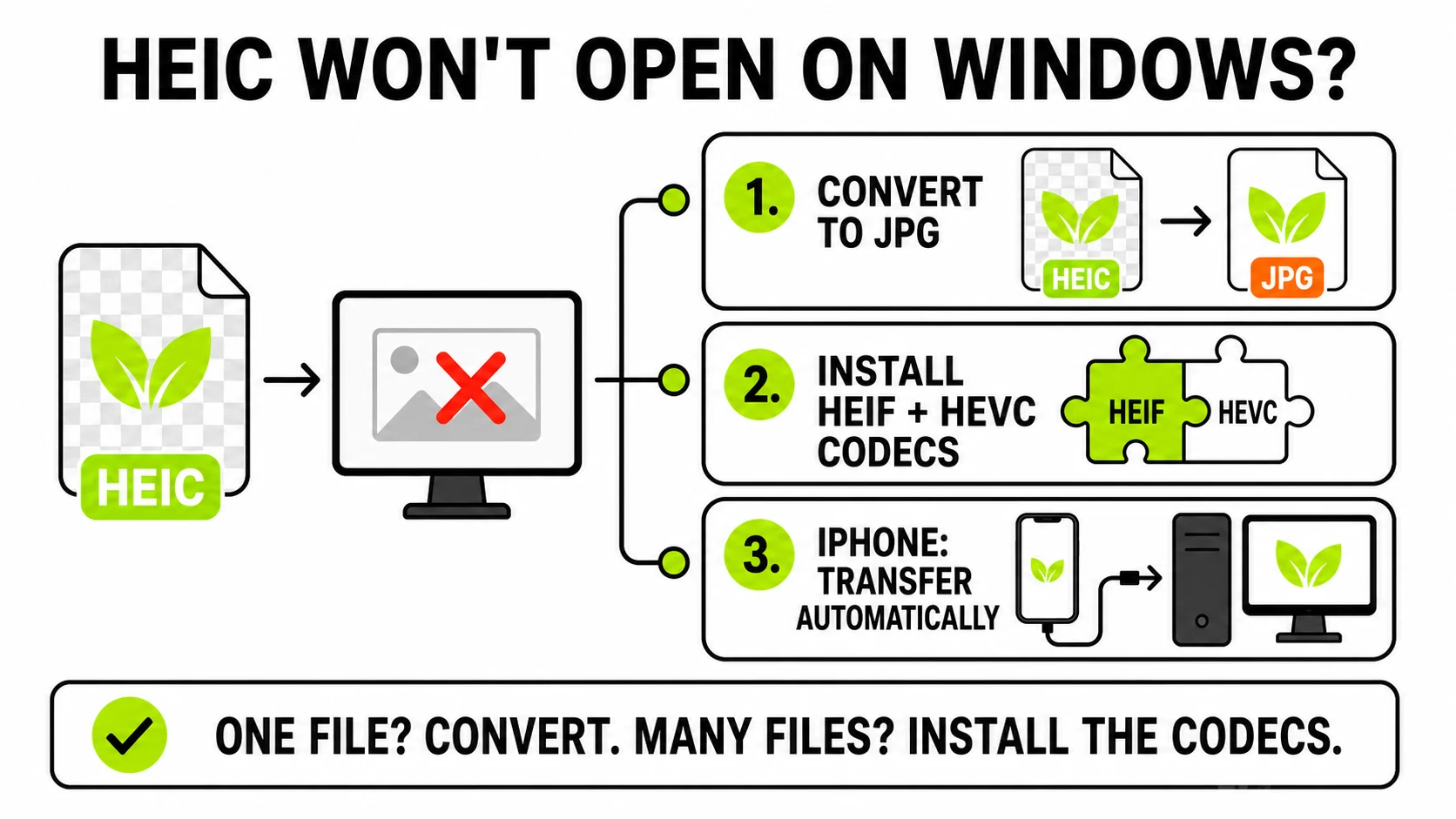
You tried to open a photo from an iPhone and Windows refused - a broken thumbnail, a “we can’t open this file” message, or an Invalid File Format error. The photo isn’t corrupted. It’s a HEIC file, and Windows can’t decode it without help. You have two good ways out: convert the photo to JPG (fastest, works on any Windows version), or install Microsoft’s codecs (fixes it system-wide, with one paid catch).
Here’s every fix, from fastest to most permanent.
Why your iPhone photos are HEIC in the first place
Since iOS 11, iPhones save photos in HEIC (High Efficiency Image Container) by default. Apple’s reasoning is sound: HEIC files are roughly half the size of equivalent JPGs at the same visual quality, which means twice the photos in the same storage.
The problem is licensing, not technology. HEIC is built on the HEVC codec, which carries patent royalties. Rather than pay them for every Windows license, Microsoft made the codec optional - so a stock Windows 10 or 11 machine opens JPGs from 1995 without blinking and chokes on photos from a current iPhone.
Fix 1: Convert the HEIC to JPG (two minutes, nothing to install)
If you just need to use the photo - attach it, upload it, edit it, print it - converting is the fastest route, and it doesn’t touch your system settings.
HEIC to JPG converterDecodes the photo in your browser - it never uploads, which matters for personal photos.
Convert HEIC to JPG →Drop the file in, and the decoder runs on your own machine - a few seconds for a large iPhone photo. Download a JPG that opens literally everywhere. If the photo is headed into an editor and you want a lossless working copy instead, convert it to PNG rather than JPG.
One honest note: most “free HEIC converter” sites upload your photo to their server to convert it. For vacation snapshots that’s merely unnecessary; for photos of documents, kids, or your home it’s a real reason to prefer a converter that works locally.
Fix 2: Install Microsoft’s HEIF extension (system-wide fix)
To make Windows itself understand HEIC:
- Open the Microsoft Store and search for “HEIF Image Extensions” (it’s published by Microsoft, and it’s free).
- Install it, then try your photo again.
- If photos still don’t open - and this is the catch nobody mentions upfront - you likely also need “HEVC Video Extensions”, the underlying codec. Microsoft charges $0.99 for it unless your PC’s manufacturer preinstalled it.
After both are in place, HEIC files open in Photos, show thumbnails in Explorer, and behave like any other image. This is the right fix if you receive iPhone photos regularly.
Fix 3: Stop the problem at the source (iPhone settings)
If the HEIC photos are coming from your own iPhone, you can end the cycle:
- Shoot JPG going forward: Settings → Camera → Formats → Most Compatible. New photos save as JPG. The trade-off is larger files - that’s the storage savings you’re giving back.
- Keep shooting HEIC, transfer as JPG: Settings → Photos → scroll to “Transfer to Mac or PC” → Automatic. Your iPhone keeps efficient HEIC storage but converts on the way out over USB.
The second option is the best of both worlds for most people - you only pay the conversion cost when a photo actually leaves the phone.
Which fix should you pick?
- One photo, right now → convert it and move on.
- You receive iPhone photos often → install both Store extensions (Fix 2).
- They’re your own photos → change the transfer setting (Fix 3), and convert the whole backlog in one batch if needed.
- The photo is headed into Photoshop or heavy editing → convert to lossless PNG instead of JPG.
What about quality?
HEIC-to-JPG conversion is lossy-to-lossy, so a small amount of detail is re-encoded. At 90%+ quality the difference is invisible in normal viewing - we default the converter to 92% for exactly this reason. What you should not do is convert the same file repeatedly (JPG → edit → save → convert again); each generation loses a little more. Convert once, keep the HEIC original if the photo matters, and edit from a PNG copy when you plan serious retouching.