
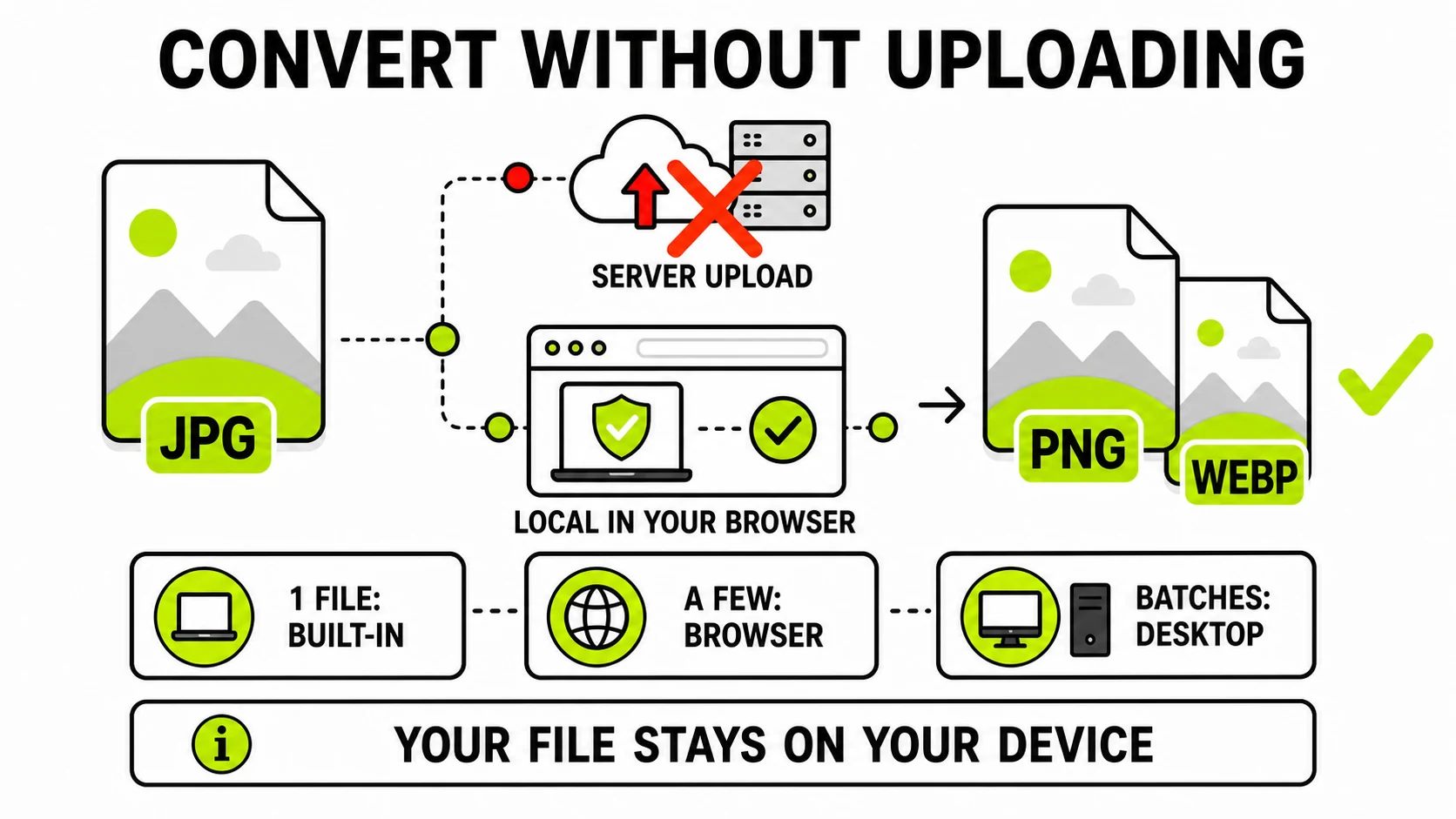
To convert images without uploading them, choose one of three local methods: a built-in operating-system action for one simple file, a browser-local converter for a few files with no installation, or a desktop application for repeated batches. “Browser-based” does not automatically mean upload, but “local” and “fully offline” are not identical claims. Verify how the tool processes files.
What does “offline image converter” actually mean?
The phrase is used for several different architectures. They can all protect an image from being uploaded, but they do not make the same promise.
| Claim | Where conversion runs | Internet required | Installation required |
|---|---|---|---|
| Built-in OS conversion | On the device | No | No additional installation |
| Local browser processing | Inside the browser on the device | Usually for the initial page and codec load | No |
| Fully offline web app | Inside the browser with cached application files | No after successful installation/cache | Sometimes a PWA install |
| Desktop converter | Native application on the device | Usually no, except installation and updates | Yes |
| Online/server converter | Remote server | Yes | No |
Local processing answers “where does my image go while it is converted?” Offline operation answers “can the complete tool start and finish without a network connection?” A browser tool can be local without being fully offline if its code or format decoder must load from the website first.
That distinction is missing from many “offline converter” pages. It matters because privacy and availability are different needs. A private tax-document scan benefits from no upload even when the page itself needs an initial connection. A photographer working with no connectivity needs the tool and all its codecs available before the network disappears.
Can a website process an image without uploading it?
Yes. A file picker can give page code access to a file you deliberately select. That code can read the bytes, decode the image, draw or transform the pixels, encode a new format, and create a downloadable result without sending the image in an HTTP request.
The browser APIs do not force either architecture. The same file input can feed local code or an upload request. According to the MDN File API guide, web content can read user-selected local files; uploading those files is a separate operation that the application must implement.
Common formats such as JPG, PNG, and WebP may use browser-native decoding and Canvas export. More specialized formats can use JavaScript or WebAssembly codecs. The conversion still runs on the device, but those codec files may need to download before the first conversion.
Which offline conversion method should you use?
Use the operating system for one ordinary file
Built-in actions are the simplest option when the platform already supports the source and destination. macOS Preview can export common image formats, and its Finder Convert Image quick action handles straightforward conversions. Windows Paint and Photos cover common open-and-save workflows, depending on the format and installed codecs.
This route has no new website or application to trust. Its limitations are format coverage, repetitive controls, and batch ergonomics. It is ideal for one JPG-to-PNG conversion, not necessarily a folder of mixed HEIC, WebP, and AVIF files.
Use a local browser converter for a few files
A browser-local tool is useful when you need a format the built-in action does not expose, want clear quality and transparency controls, or are working on a device where you cannot install software.
GenClean’s Image Converter reads JPG, PNG, and WebP files in the browser and creates a new JPG, PNG, or WebP download locally. Choose JPG for broad photo compatibility, PNG for lossless pixels or transparency, and WebP for efficient website delivery.
Local Image ConverterConvert JPG, PNG, and WebP in the browser without sending the source image to GenClean.
Convert an image locally →For an iPhone photo that other software cannot open, use the specific HEIC-to-JPG converter. HEIC decoding requires a different path from ordinary Canvas-supported formats, so a site claiming “every format” without explaining codec support deserves closer inspection.
Use a desktop application for repeated batches
An installed converter is usually the better operational choice when you work with hundreds of files, large camera images, watched folders, command-line automation, TIFF or RAW variants, or the same presets every day.
Desktop does not automatically mean private or trustworthy. Check whether the application has telemetry, cloud features, an active update history, and clear format documentation. Open-source availability can improve inspectability, but the packaged build and its update channel still matter.
For occasional folders, GenClean’s Batch ZIP workflow processes selected images locally and packages the results. Browser memory and tab lifetime still make it a different class of tool from a native production pipeline.
How can you verify that a browser converter does not upload files?
Privacy statements are useful, but the workflow should also be testable.
- Use a disposable test image. Do not begin the investigation with the passport scan or private medical record you are trying to protect.
- Read the processing explanation. Look for concrete terms such as Canvas, WebAssembly, local worker, on-device, and no file-content request. Vague “secure processing” language can still describe a server upload.
- Open browser developer tools. Select the Network panel, clear existing requests, and convert the test image.
- Inspect requests during processing. Codec, script, analytics, and page requests may occur. A local design should not transmit the image body to a conversion endpoint.
- Retry while disconnected. First let the page and required codec load. Disconnect the network, then convert another test file. Success is strong evidence that the conversion itself is local.
- Repeat after a refresh if full offline use matters. A tool may process locally in the current tab but fail to restart offline because its page was not installed or cached for offline operation.
This is evidence, not a lifetime guarantee. A site can change after an update, and developer tools require enough technical confidence to interpret requests. For especially sensitive organizational files, use an approved audited tool or a managed offline workstation rather than relying on a quick personal test.
What should you check besides upload privacy?
Keeping a file local is one quality criterion. A converter also needs to create the right output.
Format behavior
- JPG cannot preserve transparency. A converter must flatten transparent pixels onto a chosen background.
- Converting JPG to PNG does not restore detail removed by JPEG compression. It only changes how the current pixels are stored.
- Animated GIF and animated WebP require animation-aware handling; a simple raster conversion may export only one frame.
- HEIC and AVIF support can vary by browser, platform, and codec implementation.
Color and orientation
Embedded color profiles and EXIF orientation can change how an image appears. Compare the result at full size, especially for iPhone photos and wide-gamut images. Our guide to iPhone-to-Android color differences explains why a successful conversion can still look wrong.
Metadata
Some workflows preserve EXIF and color profiles; others rebuild only the visible pixels. If location privacy matters, inspect the output rather than assuming conversion removed everything. Use the Metadata Cleaner when the goal is specifically to create a sharing copy without GPS and device fields.
Output size and quality
Conversion is not automatically compression. PNG may become much larger than JPG for a photo, while WebP may make a website image smaller. Choose a format for the next use, then inspect the dimensions, visual quality, transparency, and file size of the result.
When should you not convert the image at all?
First read the actual problem. Conversion is correct when an application rejects the file type or a workflow needs a particular format. It is the wrong fix when:
- The upload says file too large: resize or compress instead.
- The image is sideways: correct orientation with Rotate & Mirror.
- The frame has unwanted areas: crop it rather than changing formats.
- The concern is GPS or EXIF: clean metadata explicitly.
- A suspicious attachment may contain malware: do not feed it into another decoder merely to “sanitize” it; follow the JPG safety checklist.
Changing format is not a universal cleanup action. Define the failure first, then choose conversion, compression, resizing, rotation, cropping, or metadata removal accordingly.
A practical no-upload conversion checklist
- For one common file, try the built-in OS action first.
- For a few files, use a browser tool with a concrete local-processing explanation.
- For regular batches, use a maintained desktop application or documented batch workflow.
- Distinguish “no image upload” from “starts fully offline.”
- Verify browser-local claims with a disposable image and Network inspection.
- Confirm source and output format support before choosing a tool.
- Review transparency, orientation, color, dimensions, quality, and metadata.
- Use conversion only when format is the actual problem.
The best offline image converter is not one universal product. It is the smallest trustworthy local workflow that supports the formats, volume, and controls required by the job without sending the source file somewhere it does not need to go.