
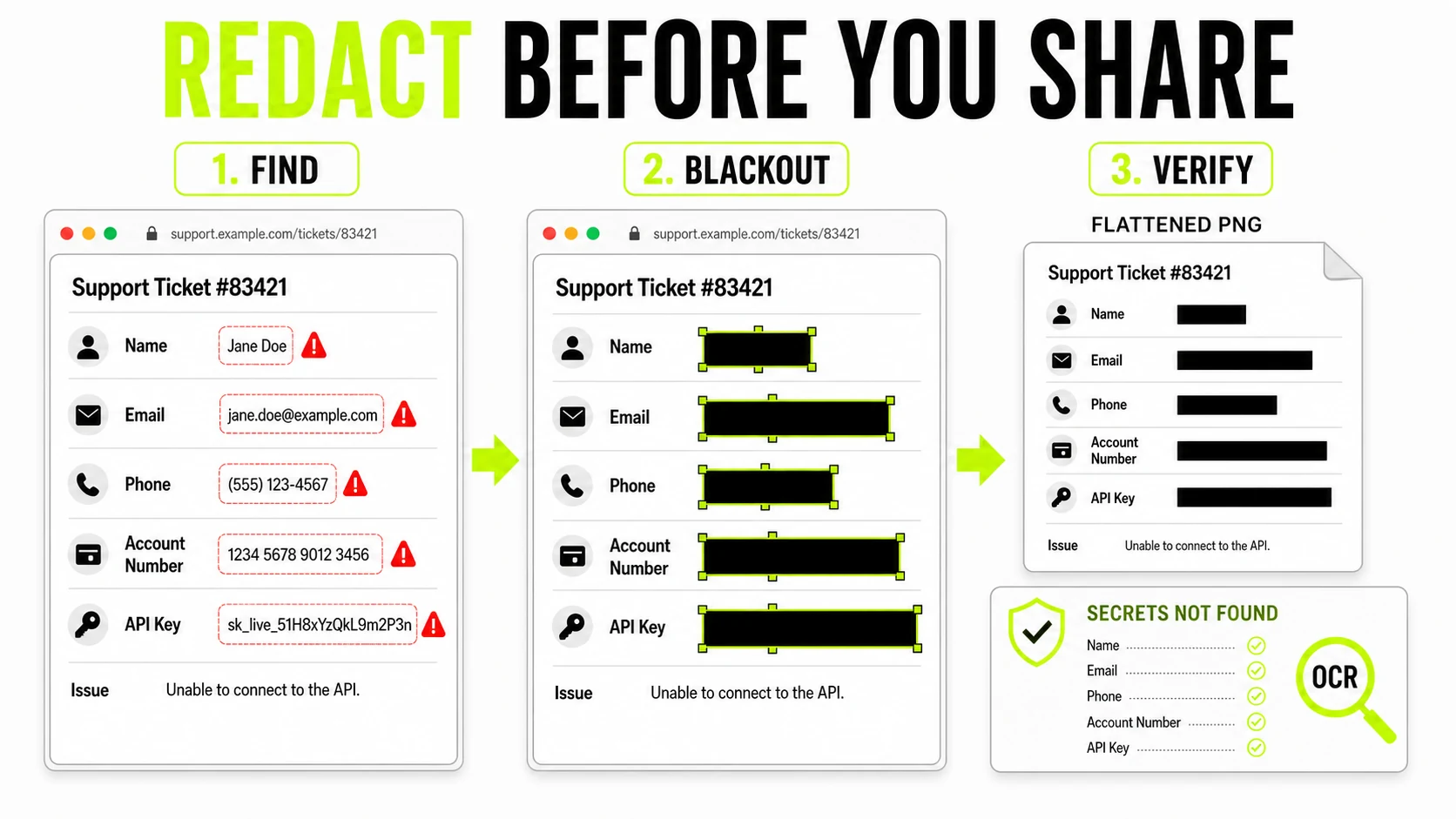
To redact a screenshot safely, cover every sensitive region with an opaque blackout, export a new flattened PNG or JPG, reopen that exported file, and verify the hidden values are gone. Use blur only when disclosure would be awkward rather than harmful. Passwords, API keys, financial details, medical information, and personal identifiers deserve solid pixel replacement.
What does it mean to redact a screenshot?
Screenshot redaction means permanently removing information from the visible image before it is shared. It is different from placing a temporary shape over the screenshot inside a document or editor. A secure result is a simple raster image whose private pixels have been replaced and whose redaction boxes are no longer separate, movable objects.
That distinction matters because the screenshot you see in an editor is not always the file another person receives. A black rectangle can look convincing while remaining an editable layer. A translucent marker can look dark on your screen while preserving enough contrast to read underneath. The final export, not the editing preview, is what must be safe.
What should you hide before sharing a screenshot?
Start with the obvious message or account number, then inspect the entire frame. Screenshots leak context precisely because they capture more than the one thing you intended to discuss.
Identity and contact details
- Full names, usernames, email addresses, phone numbers, home addresses, faces, profile photos and signatures.
- Customer IDs, employee numbers, patient references, student records and any combination of details that can identify a private person.
Money and account access
- Bank balances, card numbers, transaction references, invoices, order numbers and payment links.
- Passwords, one-time codes, recovery codes, QR codes and session links. If a live credential was captured, rotate it as well as redacting it.
Work and developer information
- Customer conversations, private tickets, unreleased product screens, internal project names and confidential metrics.
- API keys, access tokens, repository names, internal URLs, IP addresses, terminal commands and environment-variable values.
Details around the subject
- Browser tabs, bookmarks, account avatars, notification previews, menu-bar names, recent-file lists and the URL in the address bar.
- Reflections, faces, maps or documents visible inside a photographed screen. Check every corner at full size, not only the center.
This is also why cropping should come first. If a sidebar or tab strip adds nothing to the explanation, crop it away instead of drawing six boxes over it. Information that is not in the exported frame cannot be overlooked later.
Is blackout safer than blur or pixelation?
For information that must be unreadable, yes. The methods solve different problems:
- Crop removes an unnecessary edge or panel completely. It is the cleanest choice when the missing area is not needed for context.
- Blackout replaces the selected pixels with one opaque color. Use it for credentials, financial records, addresses, medical information and readable text.
- Pixelation reduces a region to coarse blocks. It works well for faces, plates and low-risk visual details, but a weak setting can preserve patterns.
- Blur softens detail without guaranteeing that all structure is gone. It is useful for visual emphasis and casual privacy, not secrets.
- A pen or highlighter depends on opacity, stroke coverage and the editor’s file model. It is too easy to leave gaps or save the drawing as a removable annotation.
The UK Information Commissioner’s Office gives similar guidance for public disclosure: blur or pixelation may be reversible, while completely masking the area and exporting to a simple image format such as PNG or JPEG helps make the redaction permanent. See the ICO’s secure disclosure guidance.
How do you permanently redact a screenshot?
- Work on a copy. Keep the original unchanged in case you cover the wrong value or later need the complete record.
- Remove irrelevant areas. Crop browser chrome, sidebars or surrounding messages that the recipient does not need.
- Draw beyond the text edges. Cover the complete value plus a small margin. Do not leave the first character, currency symbol or field label exposed if it helps someone infer the hidden value.
- Use blackout for consequential information. Pixelation or strong blur is reasonable for faces and incidental context; secrets get an opaque block.
- Export a new image. PNG is a good default for screenshots because it keeps interface text sharp. The important property is that the output is flattened into pixels.
- Inspect that new file. Close the editor, reopen the download, zoom in and verify it as if you were the recipient.
The Screenshot & Image Redactor follows that workflow directly. Paste or choose a screenshot, drag as many regions as you need, move or resize each selection, choose blackout, pixelate or blur, and download a re-encoded raster copy. Drawing and export happen locally in the browser, so the unredacted screenshot does not need to be sent to a server in order to make it safe.
Screenshot & Image RedactorCover every private region, flatten the result, and download a clean copy without uploading the original.
Redact a screenshot →How can you verify that the redaction worked?
Verification is a separate step, not a glance at the editor preview.
- Open the downloaded PNG or JPG in a different image viewer.
- Zoom to 200–400% and inspect every box edge for uncovered characters.
- Confirm that clicking the black area does not select, move or delete an annotation.
- Run the exported file through an OCR text extractor and search its output for the exact names, numbers or tokens you removed.
- Check the corners, browser chrome and notifications one final time.
- When provenance matters, inspect or remove embedded metadata separately.
OCR is a useful failure detector, not a proof by itself. If it finds a value, the redaction clearly failed. If it finds nothing, you must still inspect the image because OCR can miss small, stylized or low-contrast text. The safest test combines both checks.
For a credential, verification starts one step earlier: revoke or rotate it. You cannot know who saw a screenshot before it was cleaned, and hiding a key in the new copy does not reverse an earlier exposure.
Does redacting a screenshot remove its metadata?
Visible redaction and hidden metadata are separate concerns. Ordinary phone and desktop screenshots generally do not contain the camera GPS data associated with photos, but screenshot and annotation software can add creator or software fields. Our guide to screenshot metadata explains the difference in detail.
GenClean’s redactor rebuilds the download from rendered pixels, so the original image metadata is not copied into that result. When a file came through several editors, or when the sharing context is especially sensitive, checking it with the Metadata Cleaner provides an explicit final report rather than relying on assumptions.
Can you safely redact screenshots on Windows or iPhone?
Windows Snipping Tool includes Text Actions that can quickly redact detected email addresses and phone numbers. That is useful, but it does not remove every name, account number, API key, avatar or private interface element. Review the whole screenshot and manually cover everything its automatic pass misses.
On iPhone and iPad, Markup can add opaque filled shapes. Avoid the translucent highlighter for redaction, make the fill fully opaque, save a copy and reopen the saved image. The same rule applies in Preview, Paint and design tools: a solid shape is only permanent after it has been flattened into the exported image.
A browser redactor is useful when you want the same workflow across operating systems or when the original screenshot is too sensitive to upload. Local processing means the file stays on the device while you are trying to protect it, rather than becoming an upload before the first black box is drawn.
The 15-second check before you send it
Before attaching or posting the result, ask:
- Did I crop anything the recipient does not need?
- Are names, addresses, IDs, balances and credentials covered completely?
- Did I inspect tabs, bookmarks, notifications, avatars and every corner?
- Is this the newly exported flattened copy rather than the original?
- Did I reopen it, zoom in and check the exact values with OCR?
- If a credential appeared, did I rotate it?
That final pause catches more failures than switching between three different blur styles. Safe screenshot sharing is not mainly about choosing an effect. It is a small release process: minimize what you expose, replace the sensitive pixels, export a clean copy, and verify what another person will actually see.