
Every photo your iPhone takes embeds your exact GPS coordinates - precise enough to identify your home, your kid’s school, or your office. To remove that data from a photo you’re about to share: use the iPhone share sheet’s Options → Location toggle for one-off sends, or run the file through a metadata cleaner for a copy that’s permanently clean wherever it goes. Here’s the complete picture, including the sharing paths that quietly leak location even when you think they don’t.
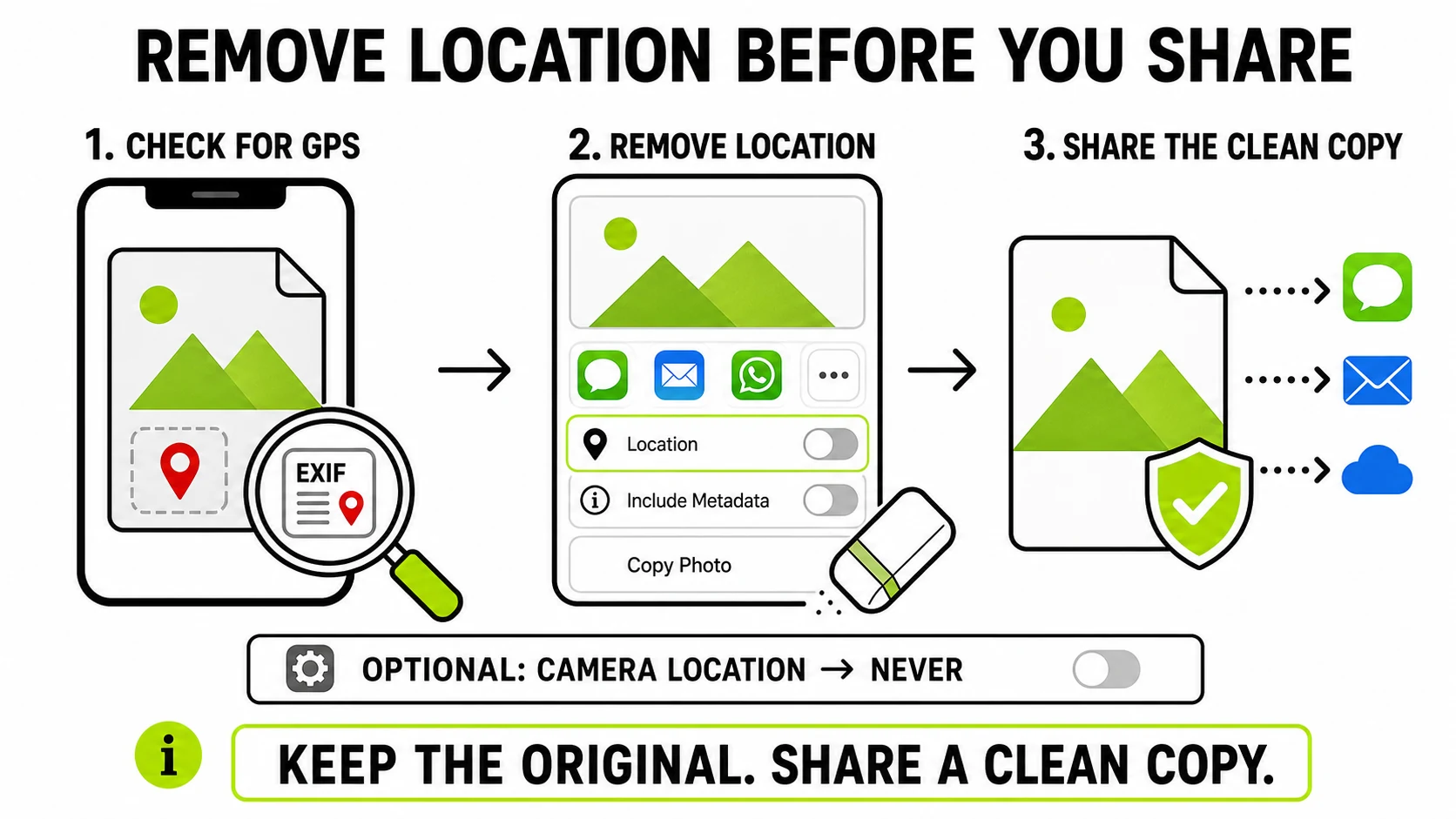
First: see what your photo actually reveals
Before fixing anything, it’s worth seeing the problem. A photo’s EXIF block typically carries your GPS latitude/longitude (often with altitude), the capture date and time to the second, your exact device model, and sometimes lens and serial-number details.
EXIF ViewerReads the photo on your device and shows everything it carries - GPS is flagged in red.
Check a photo now →The viewer parses the file locally in your browser - fitting, since uploading a photo to check whether it leaks your location would defeat the point. If GPS is present you’ll see the decimal coordinates; paste them into any map to appreciate exactly how precise “metadata” is.
Remove location when sharing from the iPhone itself
For photos you send through the iOS share sheet, Apple provides a per-share toggle that most people never notice:
- Select the photo(s) and tap Share.
- Tap Options at the top of the share sheet (small, easy to miss).
- Toggle Location off, then send.
This strips GPS from that particular send - the original in your library keeps its location (which you generally want, for your own Photos map and memories). The limitation: it only exists in the share sheet. Photos leaving via USB transfer, cloud sync, or third-party apps don’t pass through it.
Clean the file itself (works for any photo, from anywhere)
For photos already off the phone - on your computer, received from someone else, or headed somewhere the share sheet can’t help - clean the file directly. Run it through the metadata cleaner: it re-encodes the image with the EXIF block gone, pixels untouched. For JPGs specifically (the format your camera roll exports), the JPG EXIF remover shows a report of exactly what it found - GPS, device, timestamps, even the embedded preview thumbnail - and flips each item to “removed” in the clean copy.
Two details worth knowing:
- The embedded thumbnail matters. JPGs carry a small preview image inside their EXIF. If you cropped something out of a photo, an old thumbnail can still contain the uncropped frame. A proper cleaning removes it.
- The original stays untouched. You download a cleaned copy - your library keeps its data for your own use.
Stop recording location in the first place (optional)
If you’d rather your camera never wrote GPS at all: Settings → Privacy & Security → Location Services → Camera → Never. The trade-off is real - your Photos app loses its Places map and location-based search. Most people are better served keeping capture on and cleaning at the point of sharing; the setting exists for those whose threat model says otherwise.
The sharing paths that leak (and the ones that don’t)
This is where reasonable people get burned - whether metadata survives depends entirely on how the photo travels:
- Usually stripped: Instagram, Facebook, X, and most social feeds re-compress uploads and drop EXIF on the public copy. (They read it before dropping it - stripping protects you from other users, not from the platform.)
- Usually preserved: email attachments, AirDrop, USB transfer, cloud-drive share links (Drive/Dropbox), and messengers when sending “as document” or “full quality”. These deliver your file byte-for-byte - GPS included.
- It depends: messaging apps in default image mode often re-compress and strip, but their “HD/original quality” options frequently don’t.
The rule that requires no memorizing: if the recipient gets your original file, they get your metadata. When in doubt, check the photo - or clean it and stop wondering.