
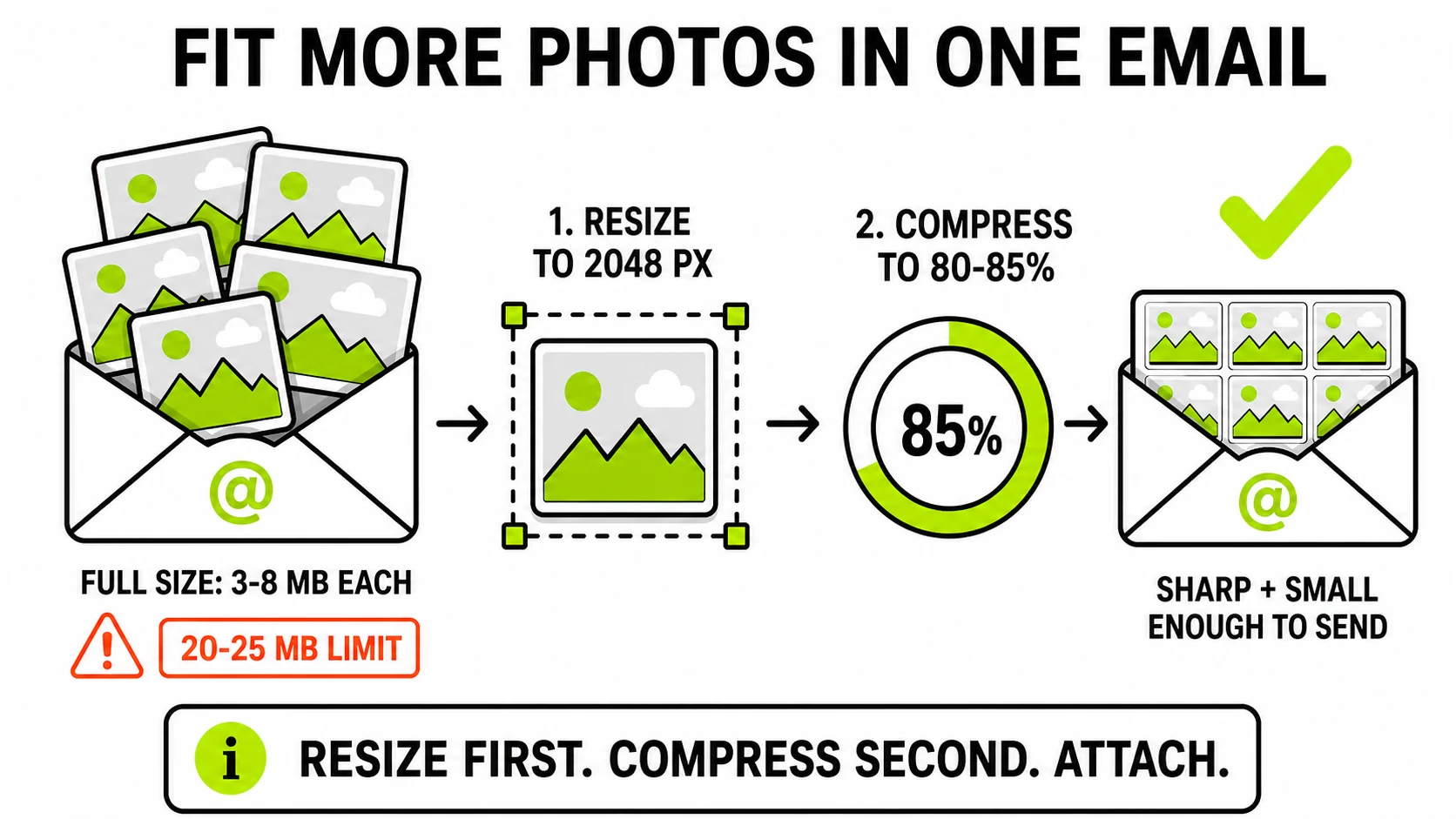
Email gives you roughly 20-25MB per message (Gmail allows 25MB, Outlook 20MB), and a handful of phone photos at 3-8MB each blows through that before you’ve attached the whole birthday. The fix is two levers: resize to viewing dimensions, then compress at 80-85% quality - together they cut a photo by 80-90% with no visible difference in the recipient’s inbox. Here’s how to pull both, and which one your situation actually needs.
Why photos are too big for email in the first place
A modern phone camera saves photos at resolutions meant for printing and cropping - dimensions several times larger than any screen they’ll be viewed on. Attach a few and you hit a second, quieter problem: email encodes attachments in a format that inflates them by roughly a third in transit, so a “24MB of photos” email is over the limit before it sends.
Mail apps know this, which is why they offer their own “Small / Medium / Large” shrinking - but their smallest options are often aggressive to the point of visible mush, and their “Actual size” defeats the purpose. Doing the reduction yourself, before attaching, is the difference between “shrunk” and “shrunk well”.
Lever 1: Resize to the size it will be seen
File size scales with pixel count, and this is the bigger lever by far. A photo viewed in an email client, on a laptop, or on a phone never needs more than about 2048 pixels on its long edge - beyond that, every extra pixel is invisible weight. Halving a photo’s dimensions removes about 75% of its pixels, and the file shrinks to match.
Run the photo through the JPG resizer, type 2048 into the long edge, and keep the aspect lock on. For photos heading into a message body rather than an attachment, 1600px is still generous.
Lever 2: Re-compress at a sane quality setting
JPEG’s quality setting decides how much invisible detail to discard. Phone cameras save near the top of the scale - the right call for an archive, and overkill for an inbox. Re-encoding at 80-85% quality is the sweet spot where photographs stay visually identical at viewing size while the file drops sharply.
JPG CompressorDrag the quality slider and watch the size drop live - the photo never leaves your device.
Compress a photo →The JPG compressor shows a live size readout as you move the slider, so you can find the point where the number is right and the photo still looks like itself - no guessing, no re-exporting five times. And because it runs in your browser, the family photos never make a detour through someone’s server on the way to being smaller.
Do both, in that order
Resize first, then compress: 2048px long edge, 80-85% quality. A typical 5-8MB phone photo lands somewhere around half a megabyte - which means a dozen photos fit in one email instead of one photo per email. If a photo is borderline and precious, err on the side of 90% quality; the difference is a modest size bump, not a visible change.
The special cases that trip people up
- iPhone photos in HEIC format. Some recipients - older Windows and
Outlook setups especially - can’t open HEIC attachments at all. If your
photos end in
.heic, convert them to JPG first; it solves the compatibility problem and the conversion’s quality setting does the compression in the same pass. (More on that in why HEIC won’t open on Windows.) - Screenshots and documents. Text turns fuzzy under photo-grade JPEG compression. Keep screenshots as PNG and shrink them by resizing instead - the reasoning is covered in JPG vs PNG vs WebP.
- Photos meant for printing. All of the above trades invisible-on-screen detail for size. If the recipient will print at large sizes or edit seriously, send full resolution another way - a drive link costs nothing.
- “I’ll just zip them.” JPGs are already compressed; ZIP finds nothing left to squeeze. A zip bundles files, it doesn’t shrink them.
When it’s a whole event’s worth of photos
Past a certain count, email is the wrong container no matter how well you compress - most providers also cap what recipients can receive. For a few dozen photos, compress them and share a cloud link. For a recurring workflow (listings, reports, client galleries), batch processing with a ZIP export is exactly what GenClean Pro exists for - same local processing, whole folder at once.
For one-off sends, though, the two-lever routine covers it: resize to 2048, compress to 85, attach, done.